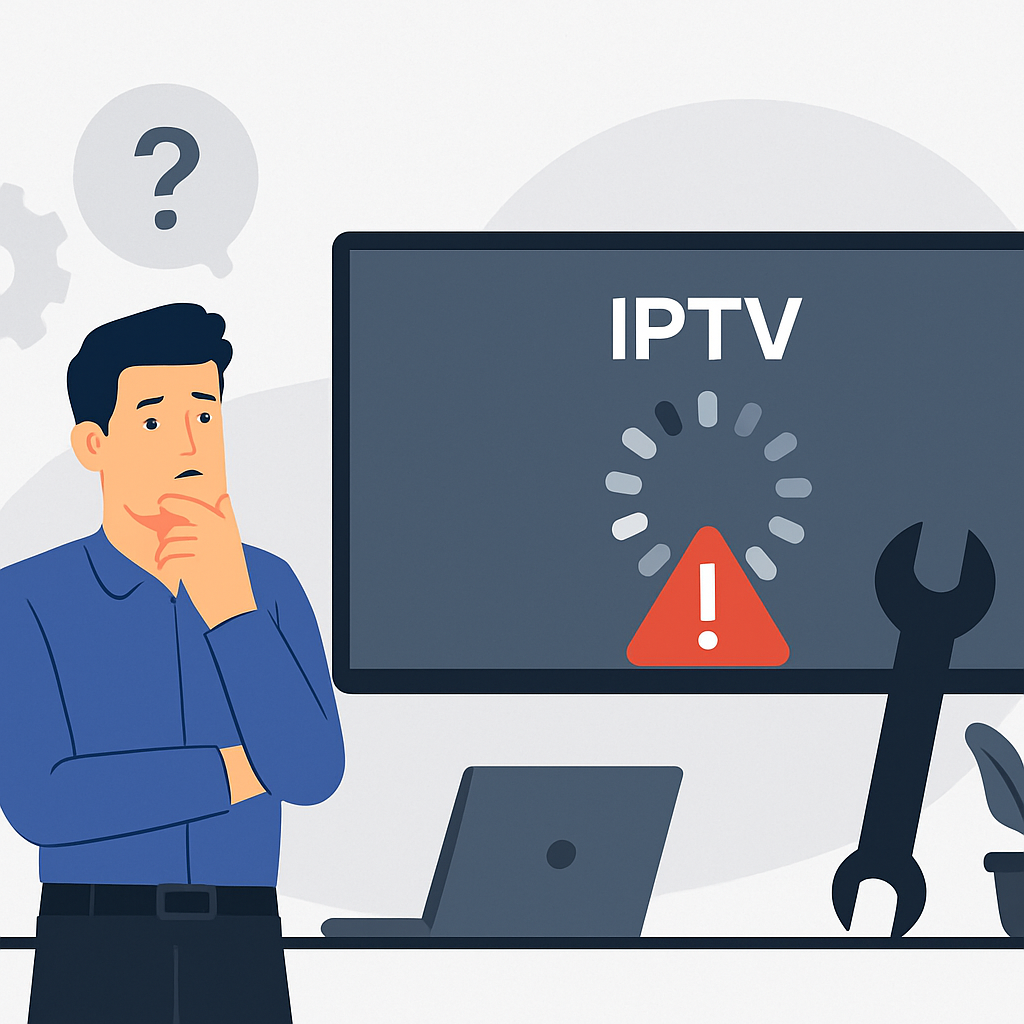
IPTV app loading errors can be frustrating, especially when you are ready to watch a live game, a movie night, or your favourite international channel, and the app simply refuses to open properly. At Primestelly, we know a lot of viewers just want a calm, simple answer without getting buried in technical language.
The good news is that IPTV app loading errors are often easy to fix. In most cases, the issue comes from a weak internet connection, an outdated app, a full cache, a playlist that needs refreshing, or a device that simply needs a restart.
This guide is written for everyday Canadian viewers using Firestick, Android TV boxes, smart TVs, Apple TV, Chromecast, phones, tablets, and similar devices. You do not need to be a tech expert to follow along.
We will walk through the most common loading messages, what they usually mean, and the safest steps to take before you uninstall anything or change your subscription. By the end, you should have a clear checklist you can use whenever your IPTV app gets stuck, spins forever, shows a blank screen, or fails to load channels.
Quick Diagnosis for IPTV App Loading Errors
Before you start changing settings, take a minute to notice exactly what is happening. The same words are often used for different problems, so a quick diagnosis can save you time and prevent unnecessary stress.
Most IPTV app loading errors fall into a few simple categories. The app may open but not load channels. It may load your channel list but show an error when you press play. It may stay on the logo screen. It may ask you to log in again. Or it may show a message such as failed to load, playlist error, server error, authorization failed, or no stream available.
Here is a simple first check:
- Does the IPTV app open at all?
- Do other streaming apps work on the same device?
- Does the problem happen on all channels or only one channel?
- Does the same subscription work on another device?
- Did anything change recently, such as a Wi-Fi password or app update?
- Are you using a VPN, new router, or mobile hotspot?
If other apps like YouTube or Netflix also struggle, your issue is likely internet or Wi-Fi related. If only your IPTV app has trouble, the cause is more likely the IPTV player, login details, playlist, device storage, or app settings. For a broader troubleshooting overview, Primestelly also has a helpful guide on common IPTV problems in Canada and easy fixes.
What IPTV App Loading Errors Usually Mean
An IPTV app is the player that displays your live channels, video on demand, TV guide, and account information. It still needs a working internet connection, a supported device, correct login details, and access to your provider playlist. When one part of that chain is not working, the app may show a loading error.
Think of it like turning on a television in the old cable days. If the TV worked but the cable box was off, you saw nothing. If the cable box worked but the signal was down, you still saw nothing. IPTV is similar, except the chain includes your internet, Wi-Fi, app, device, and IPTV account.
In most cases, IPTV app loading errors mean one of these things:
- The app cannot reach the IPTV server.
- Your device is not connected properly to the internet.
- The playlist link or Xtream Codes login is incorrect.
- The app cache is corrupted or overloaded.
- The device does not have enough memory or storage.
- The app version is outdated or no longer supported.
- A VPN, firewall, or router setting is blocking the connection.
That may sound like a lot, but the fixes are usually quick. Start with the easiest steps first. Restart, check the internet, clear cache, verify login details, and update the app. Only after that should you look at deeper device settings.
Most Common Causes of IPTV App Loading Errors
IPTV loading problems are usually not random. They tend to show up after one of a few common changes. Maybe your internet provider had a brief outage. Maybe your IPTV app updated in the background. Maybe your router restarted overnight. Maybe your device storage filled up. Or maybe your playlist needed to be refreshed.
Here are the causes we see most often among Canadian viewers:
- Weak Wi-Fi: The device is too far from the router, or the signal is blocked by walls, floors, appliances, or interference.
- Slow internet speed: The connection may be fine for browsing but not strong enough for stable live TV, especially HD or 4K.
- App cache issues: Temporary files build up and stop the app from loading correctly.
- Incorrect login details: One wrong character in a username, password, server URL, or M3U link can stop everything.
- Outdated IPTV player: Older app versions may stop communicating properly with modern servers.
- Full device storage: Firestick, Android TV boxes, and smart TVs can slow down when storage gets tight.
- VPN conflicts: Some VPN servers are slow, blocked, or unstable for streaming.
If your app loads slowly and then freezes after playback begins, you may also want to read Primestelly’s detailed guide to fix IPTV lag and freezing in Canada. Loading errors and freezing are related, but they are not always the same problem.
Another important factor is data use. If your home internet plan has limits, or if you stream on mobile data, your connection may slow down after heavy usage. Primestelly explains this in plain language in its guide to IPTV data usage in Canada.
Step-by-Step Fix for IPTV App Loading Errors
Use the following steps in order. They are arranged from easiest and safest to more advanced. A lot of viewers fix IPTV app loading errors within the first three steps, so do not skip the basics.
Before you begin, avoid deleting your IPTV app unless you know your login details are saved somewhere safe. If you remove the app without having your username, password, portal URL, M3U link, or activation information, you may make the problem harder to solve.
Step 1: Restart Your App, Device, and Router
Restarting sounds too simple, but it works more often than people expect. IPTV apps rely on fresh connections. If the app is stuck trying to load old session data, a restart can clear the temporary problem.
- Close the IPTV app completely. Do not just press the home button.
- Turn off your streaming device or smart TV.
- Unplug the device from power for 30 seconds.
- Unplug your router and modem for 60 seconds.
- Plug the modem and router back in and wait until the lights are stable.
- Turn your device back on and reopen the IPTV app.
If the app loads after this, the issue was likely a temporary connection or memory problem. If it does not load, continue to the next step.
On Firestick and Android TV devices, restarting also helps clear background processes. Many people leave apps open for days or weeks, which can slowly reduce available memory. IPTV players are more sensitive to this than simple video apps because they handle live streams, EPG data, categories, VOD artwork, and account authentication.
Step 2: Check Your Internet Speed and Wi-Fi Signal
If your IPTV app opens but takes forever to load channels, your internet may be the cause. The app needs to contact the server, download the channel list, load TV guide information, and start the stream. A weak connection can interrupt any of these steps.
Run a speed test on the same device if possible. If your TV or Firestick cannot run a test easily, use a phone beside the streaming device while connected to the same Wi-Fi network.
As a general guide:
- 10 Mbps can work for basic SD streams.
- 25 Mbps is better for reliable HD viewing.
- 50 Mbps or more is helpful for busy homes.
- 75 Mbps or more is better for 4K and multiple devices.
- Wired Ethernet is usually more stable than Wi-Fi.
For more detail, see Primestelly’s plain-English guide to internet speed for IPTV in Canada. If your speed looks fine near the router but poor near your TV, the issue is probably Wi-Fi coverage rather than your internet plan.
To improve Wi-Fi, move the router into a more open spot, reduce the distance to the streaming device, avoid placing the router behind furniture, and consider using a mesh system or Ethernet adapter. You can also follow the detailed tips in Primestelly’s guide to improving Wi-Fi for IPTV streaming.
Step 3: Clear the IPTV App Cache
Cache is temporary data that helps an app load faster. Over time, however, cache files can become outdated or corrupted. When that happens, the IPTV app may get stuck on loading, show old categories, fail to open VOD, or display a blank screen.
Clearing cache does not normally delete your app login, but clearing data usually does. The wording can vary depending on your device, so read carefully before confirming.
- Go to your device settings.
- Open Apps, Applications, or Manage Installed Apps.
- Select your IPTV player.
- Choose Clear Cache first.
- Force stop the app.
- Reopen the IPTV app and test again.
If clearing cache does not help, you can consider clearing app data, but only if you have your login information ready. Clearing data resets the app as if it were newly installed. This can fix stubborn IPTV app loading errors, but you will need to enter your details again.
On smart TVs, cache controls may be limited. In that case, a full power cycle can help. Turn the TV off, unplug it from the wall for one minute, plug it back in, and open the app again. This is especially useful on older Samsung and LG models where app memory is more restricted.
Step 4: Verify Your Login, M3U Playlist, or Portal Details
If your IPTV app says authorization failed, playlist error, invalid user, expired account, or cannot load URL, check your login details carefully. Many loading errors come from small typing mistakes.
There are usually two common ways to sign in:
- Xtream Codes: Username, password, and server or portal URL.
- M3U playlist: One long playlist link provided by your IPTV service.
- MAC portal: A device MAC address connected to a portal URL.
- App activation: A code entered on the app provider’s website.
Make sure there are no extra spaces before or after the URL. Check whether the address starts with http or https exactly as provided. Confirm that uppercase and lowercase characters are correct. If you copied the details from an email, avoid including punctuation that is not part of the link.
If you use an M3U playlist and want a step-by-step refresher, Primestelly has a dedicated guide on how to load an M3U playlist in Canada. This is especially helpful if your app loads but shows empty categories or no channels.
If your subscription recently renewed, your app may still be holding old session data. Sign out, refresh the playlist, or remove and re-add the account. If your service supports multiple connections, confirm you are not exceeding the number of devices allowed at the same time.
Step 5: Update or Reinstall the IPTV App
Apps change over time. A player that worked last year may need an update to keep working smoothly in 2026. If your IPTV app keeps loading forever, crashes on startup, or fails after a device software update, check whether a newer version is available.
- Open your device app store or app manager.
- Search for your IPTV player.
- Install any available updates.
- Restart the device after updating.
- Open the app and refresh your playlist.
If updating does not work, reinstalling may help. Again, only do this if your login details are available. Uninstalling removes the app and often removes stored account information.
Some apps are easier for beginners than others. If you often feel lost in settings, you may prefer a simpler player. Primestelly’s guide to the best IPTV apps for beginners in Canada can help you choose an app that feels less complicated. If you want a broader comparison, the best IPTV players compared in Canada article breaks down popular options in a viewer-friendly way.
IPTV Smarters Pro is one of the most common apps, and many Canadian viewers use it because it supports live TV, VOD, series, and EPG. If that is your player, Primestelly’s guide on how to use IPTV Smarters Pro in Canada may help you check the correct login method and app settings.
Device-Specific Fixes for IPTV App Loading Errors
The right fix can depend on the device you use. The same IPTV account may work perfectly on one screen and fail on another because each device handles apps, storage, updates, and network settings differently.
Firestick: Firesticks are popular, affordable, and easy to use, but storage fills quickly. Go to Settings, Applications, Manage Installed Applications, then clear cache for unused apps. Delete apps you no longer use. Restart the Firestick from the settings menu, not only with the remote. If your device is older, it may struggle with heavier IPTV apps.
Android TV box: Android boxes vary a lot in quality. Some have strong processors and plenty of storage, while cheaper models may slow down quickly. Keep the operating system updated, remove unnecessary launchers, and avoid installing too many background apps. If you are comparing devices, Primestelly’s Firestick vs Android TV Box for IPTV Canada guide explains the practical differences.
Samsung Smart TV: Smart TV apps can be convenient, but TV storage and app support may be limited. If your app fails to load, update the TV firmware, remove and reinstall the IPTV player, and unplug the TV for one minute. If you are setting up from scratch, use the guide on how to install IPTV on Samsung Smart TV.
LG Smart TV: LG webOS is user-friendly, but some IPTV apps behave differently depending on the TV model and region. Update webOS, clear available app memory if possible, and restart your router. The setup article for IPTV on LG Smart TV webOS is useful if you need to reinstall safely.
Apple TV: Apple TV is usually stable, but app permissions and updates still matter. Update tvOS, force close the IPTV app, restart the Apple TV, and confirm your login details. If you need a clean setup path, see how to set up IPTV on Apple TV.
Chromecast: Chromecast issues often involve casting, Wi-Fi bands, or phone-to-TV communication. Make sure your phone and Chromecast are on the same network. Restart both devices. If you use Google TV, update the IPTV app directly on the device. Primestelly also covers how to set up IPTV on Chromecast in a simple step-by-step format.
Phones and tablets: On iPhone, iPad, and Android phones, loading errors may come from mobile data restrictions, battery saver settings, VPN apps, or app permissions. Try Wi-Fi first, then mobile data, and compare. If it works on one but not the other, you have narrowed down the cause. Mobile viewers may also find Primestelly’s IPTV on Android and iPhone in Canada guide helpful.
IPTV App Loading Errors vs Buffering and Freezing
It helps to separate loading errors from buffering and freezing. They can feel similar because both interrupt your viewing, but they point to different parts of the streaming chain.
IPTV app loading errors usually happen before the stream starts. The app may not open, the channel list may not appear, the playlist may fail, or the screen may spin without loading content.
Buffering usually happens after the stream starts. The channel opens, but it pauses, spins, drops quality, or stops and starts. This is more often linked to speed, Wi-Fi strength, congestion, server load, or device performance.
Freezing means the picture stops while the app may still appear open. Sometimes audio continues, sometimes it does not. Freezing can come from the stream source, weak internet, overloaded device memory, or app decoding problems.
Here is a quick comparison:
- App stuck on logo: Restart app, clear cache, update app.
- Playlist will not load: Check M3U, portal URL, username, and password.
- Channels load but do not play: Check server access, VPN, and active subscription.
- Stream starts then buffers: Test speed, improve Wi-Fi, lower quality if available.
- Only one channel fails: Try another channel or report that specific stream.
If your main issue is spinning during playback rather than the app failing to open, Primestelly’s guide to IPTV buffering fixes in Canada will be more directly useful.
For viewers who love 4K content, remember that 4K needs stronger internet and better hardware than standard HD. A device that loads HD channels quickly may struggle with 4K categories. If that sounds familiar, see the guide to the best IPTV for 4K streaming in Canada.
Common Mistakes to Avoid
When IPTV app loading errors happen, it is easy to start pressing buttons, deleting apps, or changing settings quickly. The good news is that a careful approach usually works better. Avoiding a few common mistakes can save you from making a small issue bigger.
- Deleting the app too soon: Reinstalling can help, but only if you have your login details saved.
- Changing too many settings at once: If you change everything, you will not know what fixed or caused the problem.
- Ignoring Wi-Fi strength: A speed test beside the router does not prove your TV area has a strong signal.
- Using an overloaded device: Low storage and too many background apps can stop IPTV players from loading.
- Typing playlist links manually: Long M3U links are easy to mistype. Copy and paste whenever possible.
- Assuming every channel issue is an app issue: If only one channel fails, the rest of your setup may be fine.
- Keeping an old app forever: Some outdated players become unstable after device or server changes.
Another mistake is forgetting about home network demand. If several people are gaming, video calling, downloading updates, and streaming at the same time, your IPTV app may load slowly even if your plan sounds fast on paper. Families using multiple screens should understand how device limits and bandwidth work. Primestelly’s article on how many devices you can use with IPTV in Canada explains this in practical terms.
Also be careful with VPNs. A VPN can be useful for privacy, but a poor VPN server can cause login failures, slow loading, or blocked streams. If your app stops loading while connected to a VPN, disconnect and test again. If it works without the VPN, choose a different VPN location or a more reliable provider. For more guidance, see Primestelly’s guide to the best VPN for IPTV Canada.
Final Thoughts
Final Thoughts: IPTV app loading errors are annoying, but in most cases they are fixable with a calm checklist: restart everything, check your internet and Wi-Fi, clear the app cache, verify your playlist or login details, update the app, and test another device if needed. If you still run into problems, Primestelly is here to help Canadian viewers enjoy smoother, simpler IPTV without the guesswork, and you can always reach out when you want friendly guidance choosing or troubleshooting your setup.
FAQ
Why does my IPTV app keep saying failed to load?
This usually means the app cannot reach the playlist, portal, or server. Check your internet connection first, then verify your username, password, M3U link, or portal URL. If those are correct, clear the app cache and restart your device and router.
Should I uninstall my IPTV app if it will not load?
Only uninstall after you have saved your login details. Start by force closing the app, restarting your device, clearing cache, and checking for updates. Reinstalling can fix stubborn issues, but it can also remove stored account information.
Can weak Wi-Fi cause IPTV app loading errors?
Yes. Weak Wi-Fi can stop the app from downloading your channel list, TV guide, or stream information. If the app works near the router but not near the TV, improve Wi-Fi coverage or use Ethernet where possible.
Why does IPTV work on my phone but not on my TV?
This usually points to a device-specific issue. Your TV app may be outdated, the TV may have low storage, or the TV may be connected to a weaker Wi-Fi signal. Compare app versions, restart the TV, clear cache if available, and test the same network.
What should I do if only one IPTV channel will not load?
If only one channel fails, your app and internet are probably fine. Try another channel in the same category, refresh the playlist, and test again later. If the issue continues, report the specific channel to your IPTV provider for checking.