Best IPTV apps for beginners can make the difference between a smooth first night of streaming and an evening spent wondering which button to press. At Primestelly, we know a lot of viewers in Canada want IPTV to feel simple, familiar, and comfortable from the start.
The good news is that you do not need to be technical to enjoy IPTV. With the right app, a stable internet connection, and a quality IPTV subscription, your live channels, sports, movies, series, and on-demand content can be neatly organized on the screen you already use every day.
If you are new to IPTV, the app is the part you touch the most. It is where you browse channels, open the TV guide, search for shows, switch categories, save favourites, and sometimes adjust playback settings. A beginner-friendly app keeps those tasks easy.
In most cases, the best app for you depends on your device. A Firestick user may prefer something different from someone watching on an LG Smart TV, Apple TV, iPhone, Android box, or Samsung TV. That is why this guide focuses on practical choices, not confusing technical talk.
Below, we will walk through the best IPTV apps for beginners, what makes them easy to use, how to choose the right one, how setup usually works, and what mistakes to avoid so your first IPTV experience feels calm and enjoyable.
What Makes an IPTV App Beginner-Friendly?
A beginner-friendly IPTV app should feel like a normal TV experience, not a complicated computer project. When you open it, you should quickly understand where your live channels are, where the guide is, where movies and shows live, and how to get back if you click the wrong thing.
The best IPTV apps for beginners usually share a few important qualities. They keep the layout clean, support common login methods, work well with remote controls, and make it easy to organize content. They also avoid burying important features under too many menus.
For everyday Canadian households, ease of use often matters more than advanced customization. A sports fan may want fast access to NHL, NBA, NFL, CFL, soccer, and pay-per-view events. A family may want kids channels and parental controls. Someone who watches international content may want clear categories by country or language. The right app helps everyone get to the content faster.
Look for an IPTV app that includes:
- A simple home screen
- Live TV, movies, and series sections
- An easy-to-read TV guide
- Favourites for top channels
- Search by channel or title
- Remote-friendly navigation
- Stable playback controls
It is also important to understand that an IPTV app is usually just the player. The app itself does not always include channels. Your IPTV provider supplies the subscription details, and the app displays that content. If you want a broader player comparison before choosing, Primestelly has a helpful guide to IPTV players compared in Canada that goes deeper into popular options.
Best IPTV Apps for Beginners: Quick Picks
If you are just starting out, you probably do not want a long technical debate. You want to know which apps are worth trying first. While the best option depends on your device, a few IPTV apps are especially popular with beginners because they are straightforward and widely supported.
Here is a quick, friendly starting point:
- IPTV Smarters Pro: Best all-round choice for many beginners
- TiviMate: Great for Android TV boxes and Firestick-style devices
- IBO Player: Simple option for many Smart TVs
- GSE Smart IPTV: Useful for iPhone and iPad viewers
- Smart IPTV-style apps: Common on Samsung and LG TVs
- Provider-branded apps: Easy when available and well maintained
These apps are not all the same. Some are more polished on a TV screen. Some are better for mobile. Some focus on a traditional cable-like guide. Others focus on simple playlist loading. The good news is that beginners do not need every feature on day one.
What matters most is that your chosen app supports the login details your provider gives you. Many IPTV services use Xtream Codes-style login, an M3U playlist, or a portal URL. If those words sound unfamiliar, do not worry. In most cases, your provider tells you exactly which format to enter, and you only do it once.
For viewers who want a broader market view, the Primestelly IPTV player showdown for Canada is a useful next read after this beginner guide. It compares app strengths in a more detailed way, especially if you want to fine-tune your setup later.
IPTV Smarters Pro: Best All-Round Starter App
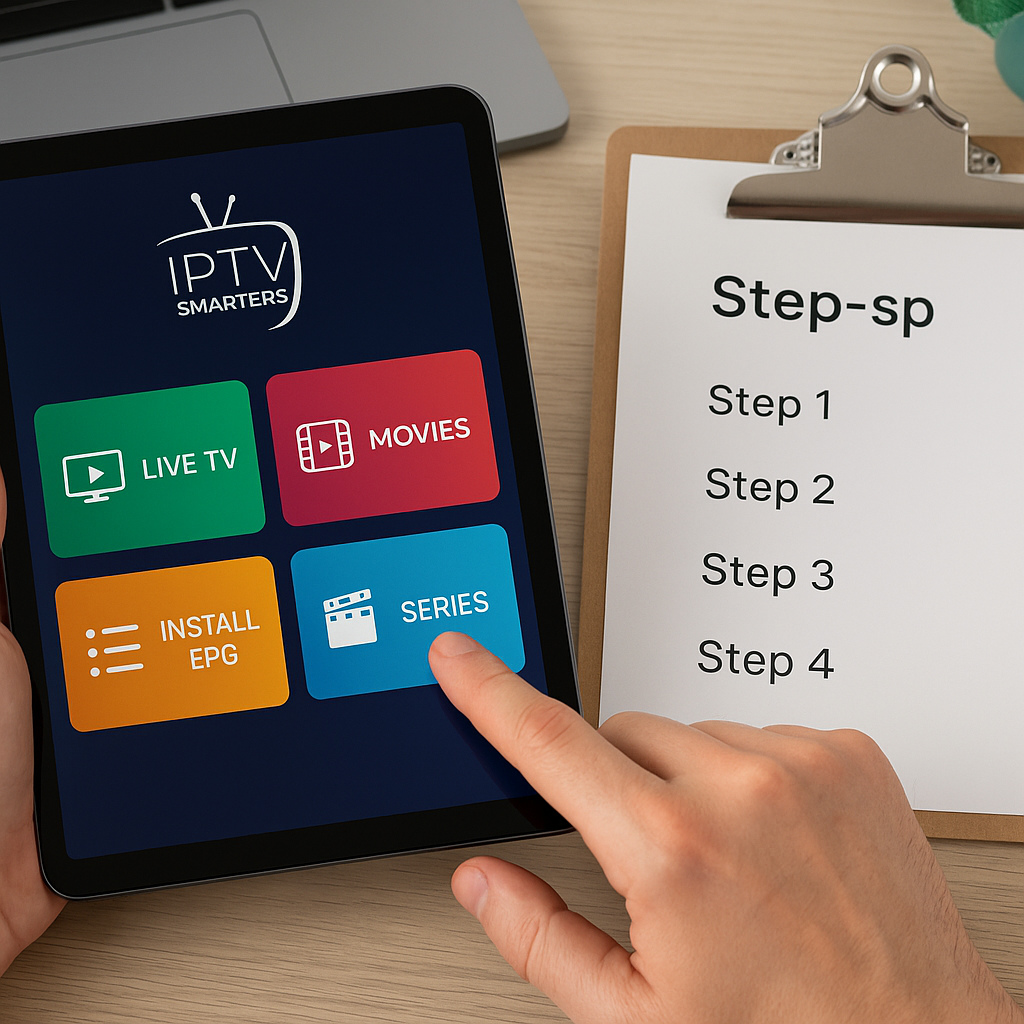
IPTV Smarters Pro is one of the most common names beginners hear, and for good reason. It has a familiar layout, supports live TV, movies, series, catch-up where available, multiple users in some versions, and common login formats. For many viewers, it feels organized without being overwhelming.
The app typically separates content into clear sections. That helps if you are moving from cable, because you can open live channels first, then explore video on demand when you are ready. The interface is not perfect on every device, but it is friendly enough for most first-time users.
Beginners often like IPTV Smarters Pro because it offers:
- Simple username and password login
- Clear live TV categories
- Movie and series sections
- A recognizable TV guide area
- Support on many common devices
- Easy switching between users or profiles in some versions
It is a strong choice if you want one app that can work across several platforms. Still, availability can vary by device and app store, so always check what is currently supported on your hardware. If your household uses iPhones or iPads often, you may also want to review the guide to best IPTV apps for iOS and iPadOS in Canada for mobile-specific tips.
One thing to remember: IPTV Smarters Pro is a player, not a subscription by itself. You still need an IPTV provider. If you are comparing services, testing before committing is smart. A trial can show you whether your app, internet, device, and channel preferences all work well together, which is why many new viewers read about an IPTV Canada free trial before buying.
TiviMate: Best for Android TV and Firestick
TiviMate is a favourite among viewers who use Android TV boxes, Google TV devices, and Firestick-style streaming devices. It feels more like a modern cable guide, with smooth channel browsing and strong remote-control support. For beginners who mainly watch live TV, it can be a very comfortable option.
TiviMate is especially popular because the guide view is clean and fast. If you like flipping through channels, checking what is on next, and building a favourites list, TiviMate can feel natural after a short learning period. Some advanced features may require a premium upgrade, but many users find the experience worth it.
TiviMate is a good beginner app if you care about:
- A polished TV guide
- Fast channel switching
- Strong Android TV support
- Favourites and channel organization
- A living room remote experience
- A more cable-like layout
If you are choosing hardware at the same time as your app, device choice matters. Firestick and Android TV boxes are both popular in Canada, but they are not identical. Primestelly has a practical comparison of Firestick vs Android TV Box for IPTV that can help you decide which setup feels easier for your home.
For viewers who want the most flexible Android-style experience, a dedicated box can be a strong option. You can also explore Primestelly’s guide to the best Android TV boxes for IPTV if you are starting fresh and want a device that can handle streaming comfortably.
IBO Player and GSE Smart IPTV: Simple Choices for TVs and Mobile
IBO Player is often used on Smart TVs, especially where users want a simple app that can load IPTV credentials and display channels without too much fuss. It is not always as feature-rich as some Android-focused apps, but many beginners appreciate its straightforward style.
GSE Smart IPTV is more commonly discussed for mobile users, especially iPhone and iPad owners. It can handle playlist-style setups and is useful when you want IPTV in your hand rather than only on the living room screen. Mobile streaming is great for watching while travelling within Canada, relaxing in another room, or keeping up with live events away from the TV.
These simpler apps may be a good fit when you want:
- Basic channel loading
- Quick access from a Smart TV
- Mobile viewing on iOS
- Playlist support
- Less setup complexity
- A backup app for travel
Smart TV users should pay close attention to compatibility. Samsung and LG TVs use their own operating systems, so app availability is not the same as Android. If you watch on an LG television, follow a device-specific walkthrough like how to install IPTV on LG Smart TV webOS. Samsung owners can use the matching guide for installing IPTV on Samsung Smart TV to avoid confusion.
For mobile viewers, it helps to think about screen size and data use. IPTV on a phone is convenient, but Wi-Fi is usually better for long viewing sessions. If you want a fuller mobile overview, see the Primestelly guide to IPTV on Android and iPhone in Canada.
How to Choose the Best IPTV App as a Beginner
Choosing the best IPTV apps for beginners is easier when you start with your everyday habits instead of app names. Ask yourself where you actually watch TV. Is it the main living room television? A bedroom Smart TV? An iPad in the kitchen? A Firestick in a condo? Your answer will narrow the choices quickly.
Beginners should also think about who else will use the app. A household with kids, grandparents, roommates, or sports fans may need a simpler layout and easy favourites. If only one person is watching, you may be comfortable with more customization. In a family setting, simple usually wins.
Use this checklist before installing anything:
- What device will you use most?
- Does the app support your provider login?
- Is the TV guide easy to read?
- Can you save favourite channels?
- Does it work well with your remote?
- Is support or setup help available?
- Can you test it before relying on it?
If your home uses several screens, also check how many connections your subscription allows. The app may install on multiple devices, but your IPTV plan may limit simultaneous viewing. That is different from app compatibility. Primestelly explains this clearly in its guide to how many devices you can use with IPTV in Canada.
Families should also look at parental controls and category organization. A beginner-friendly app should make it easy to keep kids content separate from adult content and to access family channels quickly. If that matters in your home, the guide to IPTV for families in Canada offers helpful points about kid-friendly viewing.
Finally, consider legality and trust. IPTV technology itself is legal, but the quality and legitimacy of a service depend on the provider and content rights. Beginners should avoid random offers that look too good to be true, have no support, or hide basic information. If you want a calm overview, read is IPTV legal in Canada before choosing a subscription.
Step-by-Step: Setting Up Your First IPTV App
Setting up an IPTV app for the first time may sound intimidating, but the process is usually simple. Most beginners only need the app, their provider login details, and a few minutes of patience. If you can sign in to Netflix, Crave, or an email account, you can usually handle IPTV setup with a little guidance.
Here is the common beginner setup process:
- Choose your main device. Decide whether you are watching on a Smart TV, Firestick, Android TV box, Apple TV, Chromecast, phone, tablet, or computer.
- Install the IPTV app. Use your device app store when available. On some devices, your provider may recommend a specific installation method.
- Open the app and select login type. Many apps ask for Xtream Codes, M3U playlist, or portal details.
- Enter your subscription details carefully. Type the server URL, username, and password exactly as provided. Small spelling errors are a common issue.
- Wait for channels to load. The first sync can take a minute, especially if there are many channels and VOD titles.
- Open the live TV section. Test a few local, sports, movie, and news channels to make sure playback works.
- Create favourites. Save your everyday channels so you do not need to browse huge lists every time.
- Check the TV guide. If the guide is missing, wait a little or refresh EPG in the app settings if available.
If you use Apple TV, Chromecast, or Firestick, a device-specific guide can make the process much easier. Apple TV owners can follow how to set up IPTV on Apple TV, while Chromecast users can review how to set up IPTV on Chromecast. If you use an Amazon device, the Primestelly walkthrough for IPTV on Firestick in Canada is a helpful place to start.
After setup, do not judge the service from only one channel. Test live TV, sports, VOD, and a few different categories. If one stream has a temporary issue, another may work normally. Also test during the time you actually watch TV, such as evenings or weekend sports hours, because that gives you a more realistic experience.
Best IPTV Apps vs Devices: What Matters More?
Many beginners ask whether the app or the device matters more. The honest answer is both, but the device often sets the ceiling for your experience. A great app on a slow, outdated device may still feel frustrating. A strong device with a confusing app may also disappoint. The best results come from pairing a beginner-friendly app with reliable hardware.
Think of your IPTV setup like a car and a road. The IPTV provider supplies the content, the app is the dashboard, your device is the engine, and your internet is the road. If one part is weak, the whole trip can feel bumpy.
Here is a simple comparison:
- Smart TV apps: Convenient because nothing extra is needed, but app choices may be limited.
- Firestick: Affordable, popular, portable, and beginner-friendly with the right app.
- Android TV box: Flexible and powerful, often best for app choice and storage.
- Apple TV: Smooth and premium, but app options and setup steps may differ.
- Chromecast with Google TV: Simple living room option with good app support.
- Phones and tablets: Great for personal viewing, travel, or backup access.
If you are using an older Smart TV, an external device may improve the experience. Many viewers are surprised by how much smoother IPTV feels on a good streaming stick or Android box compared with an aging TV app. On the other hand, if your Samsung or LG TV already supports a stable IPTV app, keeping things simple may be best.
For beginners, convenience matters. If adding another box and remote feels annoying, start with your Smart TV. If your Smart TV app store is limited or slow, move to a Firestick, Chromecast, Apple TV, or Android TV box. There is no single correct answer for every Canadian home.
Common Mistakes to Avoid
Most beginner IPTV problems come from small, avoidable mistakes. The good news is that once you know what to watch for, setup becomes much easier. A lot of viewers run into the same issues during their first week, and most can be fixed quickly.
Avoid these common mistakes:
- Choosing an app before checking device support. Not every app works on every TV or streaming box.
- Typing login details too quickly. One wrong letter in a server URL or username can stop everything from loading.
- Assuming the app includes channels. Most IPTV apps are only players; your provider supplies content access.
- Ignoring internet speed and Wi-Fi quality. Even the best app cannot fix a weak connection.
- Skipping favourites. Huge channel lists are easier when your top channels are saved.
- Using too many devices at once. Your plan may have a simultaneous stream limit.
- Not testing during peak times. Evening and sports hours are the real test for many homes.
Another mistake is constantly switching apps before understanding the first one. Beginners sometimes install three or four players in one evening and then feel more confused. In most cases, it is better to choose one recommended app, learn the basic menus, and test it properly.
Also, do not overlook support. A low-quality provider may leave you guessing if an app fails to load. A reliable IPTV service should provide clear setup details, explain compatible apps, and help you troubleshoot basic issues. When buying, it is worth reviewing advice on an IPTV subscription in Canada so you know what safe purchasing looks like.
Keeping Your IPTV App Smooth in Canada
Once your app is installed, a few simple habits can keep streaming smooth. You do not need to become a networking expert. Just pay attention to Wi-Fi strength, device storage, app updates, and how many people are using the internet at the same time.
For many Canadian homes, buffering is not caused by the IPTV app itself. It may come from weak Wi-Fi, an overloaded device, a crowded home network, or a temporary stream issue. Before replacing your app, try the basics.
Helpful maintenance tips include:
- Restart your device once in a while
- Keep your IPTV app updated
- Use 5 GHz Wi-Fi when close to the router
- Use Ethernet if your device supports it
- Close unused background apps
- Clear cache on Android devices when needed
- Test another channel before assuming the app is broken
If buffering keeps happening, work through a structured checklist. Primestelly has a dedicated IPTV buffering fix for Canada guide that explains practical steps without making things overly technical.
Your internet plan also matters. For HD streams, most homes are fine with a solid broadband connection, but 4K streams need more room. If several people are gaming, video calling, downloading, and streaming at the same time, even a good IPTV app may struggle. In most cases, improving router placement or switching to wired Ethernet helps more than changing apps.
VPN use is another topic beginners ask about. Some viewers use a VPN for privacy or network routing, but a poor VPN can slow down streams. If you plan to use one, choose carefully and test with and without it. For more guidance, see Primestelly’s article on the best VPN for IPTV in Canada.
Final Thoughts
The best IPTV apps for beginners are the ones that make streaming feel simple, reliable, and familiar on the device you already enjoy using. For many viewers, IPTV Smarters Pro, TiviMate, IBO Player, and GSE Smart IPTV are strong starting points, but the right choice depends on your TV, streaming device, household needs, and comfort level. Start with one beginner-friendly app, enter your details carefully, save your favourites, and give yourself a little time to learn the layout. If you want friendly support, premium channel access, and a smoother way to begin, Primestelly is here to help you stream with confidence.
FAQ
What is the easiest IPTV app for beginners?
For many beginners, IPTV Smarters Pro is one of the easiest all-round options because it has clear sections for live TV, movies, series, and the TV guide. TiviMate is also very beginner-friendly on Android TV and Firestick-style devices, especially if you like a cable-like guide.
Do IPTV apps include channels?
In most cases, no. IPTV apps are usually players, not channel providers. You install the app, then enter the login details from your IPTV service. The provider supplies access to channels, VOD, and other content, while the app organizes and plays it.
Can I use one IPTV app on multiple devices?
Often, yes, you can install the same app on more than one device if the app supports those platforms. However, your IPTV subscription may limit how many devices can stream at the same time. Always check your plan before using multiple screens at once.
Which IPTV app is best for Smart TVs?
For Samsung and LG Smart TVs, the best app depends on what is available in your TV app store and what your provider supports. IBO Player and Smart IPTV-style apps are common choices. Some viewers prefer adding a Firestick, Chromecast, Apple TV, or Android TV box for more app flexibility.
Why is my IPTV app buffering?
Buffering can happen because of weak Wi-Fi, slow internet, an overloaded device, too many people using the network, or a temporary stream issue. Try restarting your device, moving closer to the router, using Ethernet, closing background apps, and testing another channel before changing apps.