How to load an M3U playlist into any IPTV player is one of the most useful things to learn if you want flexible, comfortable IPTV streaming at home in Canada. The good news is that the process is usually much simpler than it looks, especially when you have your playlist link ready and a reliable service like Primestelly to guide your setup.
An M3U playlist is basically the bridge between your IPTV subscription and the app you use to watch TV. Instead of being tied to one box or one screen, a playlist can let you sign in on a Firestick, Android TV box, Smart TV, phone, tablet, computer, or other compatible IPTV player.
A lot of viewers feel nervous the first time they see terms like M3U URL, EPG, portal, or playlist file. In most cases, you only need to copy one link, paste it into the right place inside your IPTV app, save it, and wait for the channels to load.
This guide explains the full process in plain language for everyday Canadian viewers. Whether you are setting up live channels for sports, news, movies, family programming, or international content, you will learn what to check, what to avoid, and how to fix the most common issues.
If you are still choosing an app, it may help to review the best IPTV apps for beginners in Canada before you start. The right player can make loading an M3U playlist feel smooth instead of frustrating.
What Is an M3U Playlist for IPTV?
An M3U playlist is a text-based playlist format that tells an IPTV player where to find your channels and streams. Think of it like a digital channel map. The app reads the playlist, organizes the channels, and displays them on your screen so you can browse and watch.
In IPTV, an M3U playlist usually comes from your IPTV provider after you subscribe or start a trial. It may arrive as a long web link, sometimes called an M3U URL, or as a downloadable file ending in .m3u or .m3u8.
A typical M3U playlist can include:
- Live TV channel links
- Channel names and categories
- Sports, news, and entertainment sections
- International channel groups
- Some video-on-demand entries
- Optional EPG information
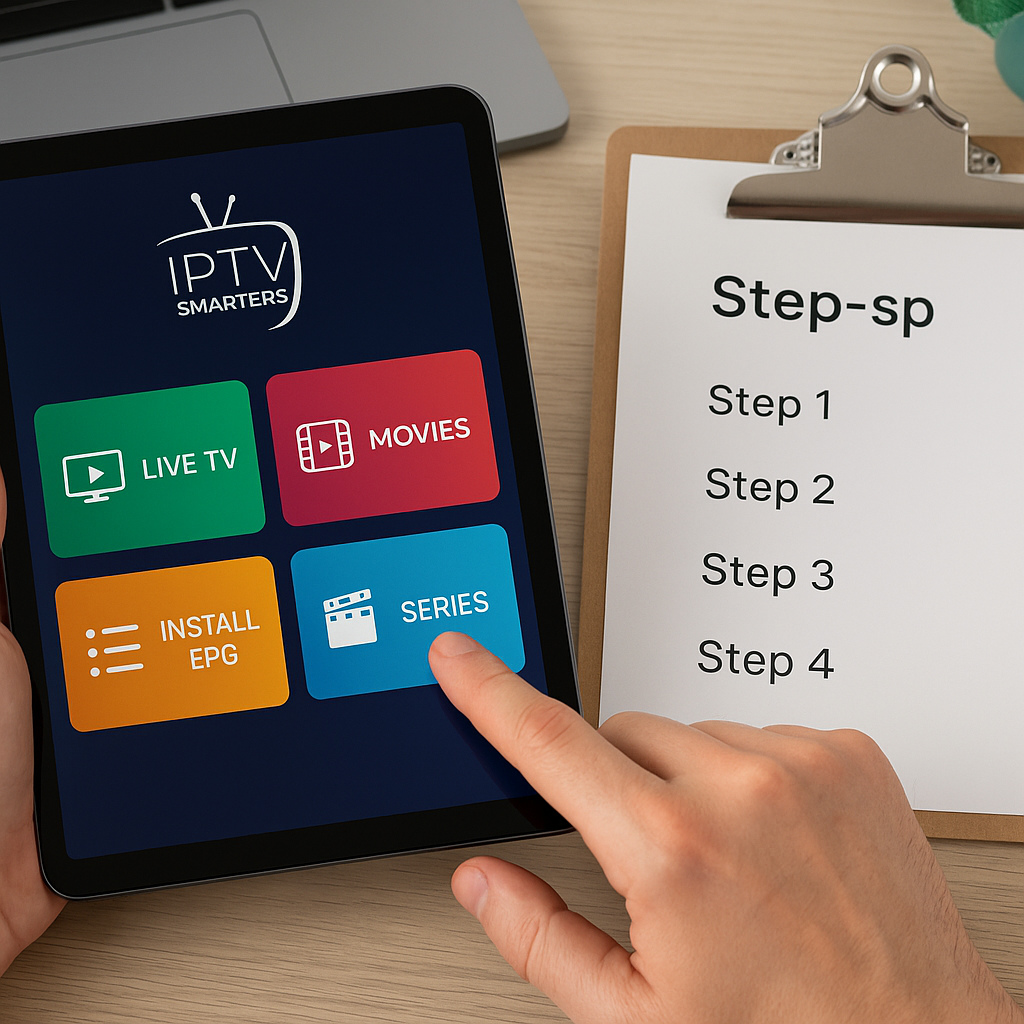
The playlist itself does not usually play anything on its own. You need an IPTV player to read it. That player may be IPTV Smarters Pro, TiviMate, GSE Smart IPTV, Televizo, VLC, OTT Navigator, Smart IPTV, Flix IPTV, or another supported app. If you prefer a familiar starting point, Primestelly has a step-by-step guide on how to use IPTV Smarters Pro in Canada, which is one of the most common choices for new viewers.
It is also important to understand that an IPTV player and an IPTV subscription are not the same thing. The player is the app. The subscription is the service that provides your channels. Loading an M3U playlist simply connects the two.
Before You Load an M3U Playlist
Before opening your IPTV app, take a minute to prepare. This small step can save you from typing mistakes, failed logins, and blank channel lists. In most cases, setup problems are not caused by the app itself. They are caused by a missing character in the playlist link, an expired subscription, or using the wrong login method.
You should have the following ready:
- Your active M3U playlist URL or file
- Your IPTV player app installed
- A stable internet connection
- Your device connected to Wi-Fi or Ethernet
- Any username and password provided
- Your EPG link if included
If your provider sent a very long link, copy and paste it instead of typing it by hand. A single missing symbol can stop the entire playlist from loading. On a TV remote, typing long URLs can be especially slow, so many viewers prefer apps that allow pairing, QR code login, or input from a phone.
You should also confirm what type of login your IPTV app is asking for. Some apps ask for an M3U URL. Others ask for Xtream Codes details, such as server URL, username, and password. Many popular apps support both. If you are setting up IPTV for the first time, the broader complete guide to setting up IPTV in Canada is a useful companion to this article.
Finally, check your device. A modern Firestick, Android TV box, Smart TV, Apple TV, iPhone, iPad, or Android phone can usually handle IPTV well, but older devices may load slower. If your app freezes while importing a large playlist, close other apps and restart the device before trying again.
M3U URL vs M3U File: Which Should You Use?
When learning how to load an M3U playlist into any IPTV player, you will usually see two options: an M3U URL or an M3U file. Both can work, but they behave a little differently.
An M3U URL is a web link. You paste it into your IPTV player, and the app pulls your channel list from the provider. This is the easiest option for most viewers because it can refresh automatically when your provider updates channels, categories, or stream links.
An M3U file is a downloaded playlist saved on your device. You upload or open the file inside the IPTV player. This can be useful for testing, editing, or using a player that does not accept long web links, but it may not update automatically unless you download a fresh file.
Here is the simple comparison:
- M3U URL: Best for everyday use
- M3U file: Good for manual imports
- M3U URL: Easier to update
- M3U file: Easier to store offline
- M3U URL: Less convenient to type on TV remotes
- M3U file: May become outdated faster
For most Canadian households, the M3U URL is the better choice. It is cleaner, easier to refresh, and more practical if you use more than one device. If your playlist includes a separate EPG URL, add that too. The EPG is the TV guide data that shows program names, times, and schedules.
M3U is also different from Xtream Codes login. With Xtream Codes, you usually enter three pieces of information: a server URL, username, and password. Many viewers find this cleaner than pasting one long M3U link. However, if your app supports M3U only, the playlist URL is exactly what you need.
How to Load an M3U Playlist Into Any IPTV Player
The exact buttons may look different from app to app, but the core process is almost always the same. You open your IPTV player, add a new playlist, choose M3U or M3U URL, paste your link, save it, and let the app load channels.
Use these steps as your general roadmap. If your app uses slightly different labels, look for similar words such as Add playlist, Add user, Remote playlist, M3U link, Playlist URL, or Import playlist.
Step 1: Install and Open Your IPTV Player
Start by installing your preferred IPTV player on your device. On Android TV, Firestick, phones, tablets, Samsung TV, LG TV, Apple TV, and Chromecast with Google TV, the app store or sideloading method depends on the device.
- Open your device app store or approved installation method.
- Search for your chosen IPTV player.
- Install the app and wait for it to finish.
- Open the app from your home screen.
- Accept any basic permissions the app requires.
If you are using a Firestick, the setup may involve downloading an app from the Amazon Appstore or using Downloader for apps not listed there. You can follow Primestelly’s detailed Firestick IPTV setup guide for Canada if you want device-specific help.
For Android TV boxes, the experience is often very flexible because many IPTV players are available through Google Play or direct APK installation. If you are comparing hardware, the guide to the best Android TV boxes for IPTV can help you understand what matters for smooth playback.
Step 2: Choose Add Playlist or M3U Login
Once the IPTV player opens, look for the setup option. New apps often show a welcome screen with buttons such as Add Playlist, Add User, Load Playlist, Add M3U URL, or Use M3U Link.
Select the option that mentions M3U. If you see multiple login methods, choose the one that matches what your provider sent. If you received a long link beginning with http or https, choose M3U URL. If you received a file, choose local playlist or file upload. If you received a server, username, and password, choose Xtream Codes instead.
Typical options may include:
- Load your playlist or file URL
- Login with Xtream Codes API
- Import local M3U file
- Add remote playlist
- Use playlist URL
- Add EPG source
Do not worry if your app looks different. The good news is that most IPTV players use similar wording, even if the layout changes. If you are unsure which app is best for your viewing style, compare popular options in the best IPTV players compared in Canada guide.
Step 3: Paste the M3U Playlist URL Carefully
This is the most important step. Paste the full M3U playlist URL exactly as it was provided. Do not add spaces before or after the link. Do not shorten it. Do not remove symbols such as question marks, equals signs, ampersands, or numbers.
- Click inside the M3U URL field.
- Paste the full playlist link.
- Add a playlist name, such as Primestelly or Live TV.
- Enter the EPG URL if your app asks for it.
- Save or confirm the playlist.
- Wait while the app imports channels.
If you are typing the URL manually on a TV remote, go slowly. Watch for common mix-ups such as the number 0 and the letter O, or lowercase l and uppercase I. Copy and paste is always better when possible.
Some apps also allow you to add user-agent settings, catch-up settings, or stream format preferences. If you are not sure what those mean, leave them at default. In most cases, the default settings work well for regular viewing.
Step 4: Refresh Channels and Test Playback
After saving the playlist, the app should load your channel list. This can take a few seconds or a few minutes depending on the size of the playlist, the speed of your device, and your internet connection.
Once the channel list appears, test a few different categories:
- Local Canadian channels
- Sports channels
- News channels
- Movie channels
- Kids and family channels
- International channels
If one channel does not open, try another before assuming the setup failed. Sometimes a single stream may be temporarily offline while the rest of the playlist is fine. If no channels work at all, check the troubleshooting section below.
You should also refresh the EPG if your guide looks empty. Many IPTV apps have a separate refresh button for the playlist and the TV guide. The channel list may load first, while guide data takes longer.
Loading an M3U Playlist on Common Devices in Canada
The general steps are the same, but each device has its own personality. A lot of viewers in Canada use Firestick, Android TV boxes, Samsung Smart TVs, LG Smart TVs, Chromecast, Apple TV, iPhone, iPad, and Android phones. Here is how the M3U process usually feels on each platform.
Firestick: Firestick is popular because it is affordable and portable. Install your IPTV player, open it, choose M3U URL, paste the playlist, and save. If you are still deciding between devices, the Firestick vs Android TV Box comparison explains the practical differences for IPTV viewers.
Android TV box: Android boxes are flexible and often powerful. They work well with apps like TiviMate, IPTV Smarters Pro, OTT Navigator, and Televizo. M3U setup is usually easy because copying links and using external keyboards is simpler than on some Smart TVs.
Samsung Smart TV: Samsung TVs often use apps available in the Samsung app store. You may need to enter a playlist URL directly in the app or use the app’s website pairing system. For a full walkthrough, see how to install IPTV on Samsung Smart TV.
LG Smart TV: LG webOS TVs also support several IPTV apps. Some apps ask for a MAC address activation or a playlist upload through a browser. The Primestelly guide on installing IPTV on LG Smart TV webOS is helpful if your LG app uses a different setup screen.
Chromecast with Google TV: Chromecast with Google TV works much like an Android TV device. Install an IPTV player, choose M3U, and paste the link. If you cast from a phone instead, your phone app may hold the playlist while Chromecast displays the stream. For more detail, read the Chromecast IPTV setup guide.
Apple TV: Apple TV is smooth and reliable when paired with a good IPTV app from the App Store. You usually add the M3U URL from inside the app, sometimes with iCloud sync or phone-based typing. The Apple TV IPTV setup guide covers this in a device-friendly way.
iPhone and iPad: On iOS and iPadOS, copy the M3U URL from your email or account area, open your IPTV app, paste it into the playlist field, and save. If you want app suggestions, explore the best IPTV apps for iOS and iPadOS in Canada.
Android phone: Android phones are usually the easiest place to test an M3U playlist because copying and pasting is simple. Many viewers test on a phone first, then set up the TV once they know the playlist works.
Troubleshooting M3U Playlist Problems
If your M3U playlist does not load the first time, stay calm. Most issues have simple causes. The good news is that you can usually narrow the problem down in a few minutes.
Problem: The playlist says invalid URL. This usually means the link was typed incorrectly, copied incompletely, or pasted with an extra space. Copy the link again from the original message. Make sure the beginning includes http or https, and make sure the end of the link is not cut off.
Problem: Channels load but will not play. Your subscription may be inactive, the server may be temporarily busy, or your app may need a different player engine. Try switching from the built-in player to an external player if the app allows it. Also test another channel category.
Problem: The channel list is empty. This can happen if the app saved the playlist name but did not actually import the link. Delete the playlist and add it again. If your provider offers both M3U and Xtream Codes, try the other login method.
Problem: The TV guide is missing. Add or refresh the EPG URL. In some apps, the playlist and guide are separate. You may need to map EPG channels manually if the app does not match them automatically.
Problem: The playlist loads slowly. Large playlists can take time, especially on older Smart TVs. Restart the app, close background apps, or try a lighter IPTV player. You may also want a backup app. Primestelly’s list of best backup IPTV apps in Canada is useful when one player does not behave well with your device.
Problem: Streams buffer or freeze. This may not be an M3U issue. It could be Wi-Fi strength, device memory, internet speed, or network congestion during busy hours. The dedicated IPTV buffering fix guide for Canada explains practical ways to improve stream stability.
Here is a quick checklist to try before contacting support:
- Restart your IPTV app
- Restart your device
- Check your internet connection
- Re-copy the M3U URL
- Refresh the playlist
- Refresh the EPG
- Test another IPTV player
If the playlist works in one app but not another, the issue is likely app compatibility. If it does not work anywhere, the issue may be the playlist, subscription status, or provider-side access.
Common Mistakes to Avoid When Loading an M3U Playlist
Common mistakes are easy to make, especially when you are setting up IPTV on a TV remote. The good news is that once you know what to watch for, they are also easy to avoid.
The most common mistake is typing the M3U link manually. These links can be long and contain symbols that are hard to enter correctly on a remote. Whenever possible, use copy and paste, a phone keyboard, a Bluetooth keyboard, or a web portal provided by the app.
Another mistake is confusing the EPG URL with the M3U URL. The M3U URL loads channels. The EPG URL loads guide information. If you put the EPG link in the playlist field, channels will not load. If you put the M3U link in the guide field, the TV guide may fail.
Watch out for these mistakes:
- Adding spaces before or after the URL
- Using an expired playlist link
- Choosing Xtream Codes instead of M3U
- Choosing M3U when you only have Xtream details
- Forgetting to refresh the playlist
- Using an outdated IPTV app
- Trying too many devices at once
Device limits are another common source of confusion. Some IPTV subscriptions allow one connection at a time, while others support multiple devices. If you load the same M3U playlist on several screens and streams suddenly stop, you may have reached your connection limit. Primestelly explains this clearly in the guide on how many devices you can use with IPTV in Canada.
It is also smart not to keep changing settings randomly. If you are not sure what a setting does, leave it alone. Adjust one thing at a time, test, and then move to the next. This makes it much easier to identify what actually fixed the problem.
Keeping Your M3U Playlist Secure and Reliable
Your M3U playlist is private account information. Treat it like a password. Anyone with access to your playlist link may be able to use your subscription, which can cause connection errors or account issues. Do not post it in forums, social media comments, public chat groups, or screenshots.
To keep your setup safe and steady, follow these habits:
- Use a trusted IPTV provider
- Store playlist details privately
- Do not share your M3U URL publicly
- Use strong account passwords
- Keep your IPTV app updated
- Remove old devices you no longer use
Some viewers also use a VPN for privacy or to improve routing stability, especially when travelling or using public Wi-Fi. A VPN is not a magic fix for every IPTV issue, but it can be useful in certain situations. If you are considering one, read the Primestelly guide to the best VPN for IPTV in Canada before choosing.
Reliability also depends on choosing the right player for your device. Some apps handle large playlists better than others. Some are better for EPG, catch-up, parental controls, or multiple profiles. If you want a broader overview, the IPTV player showdown for Canada compares popular choices in a practical way.
For families, it is worth checking whether your IPTV app supports favourites, locked categories, PIN protection, and separate profiles. A large M3U playlist can include many categories, so a little organization helps everyone find what they actually watch.
FAQ
Can I load the same M3U playlist into any IPTV player?
In most cases, yes, as long as the IPTV player supports M3U or M3U8 playlists. However, some apps handle playlists better than others, and your subscription may limit how many devices can stream at the same time. If one app does not work well, try another trusted player before assuming the playlist is broken.
Why is my M3U playlist not loading?
The most common reasons are an incorrect URL, an expired subscription, a missing part of the link, app compatibility problems, or a temporary server issue. Copy the link again, remove extra spaces, restart the app, and test the playlist on another device or player.
Do I need an EPG URL with my M3U playlist?
You do not always need an EPG URL to watch channels, but it improves the experience by adding program guide information. Without EPG data, channels may still play, but you may not see show names, schedules, or upcoming programs.
Is an M3U URL better than Xtream Codes login?
Neither is automatically better for everyone. M3U URLs are widely supported and simple to use, while Xtream Codes login can be cleaner because it separates the server, username, and password. If your IPTV player supports both, use the method your provider recommends.
Can I edit my M3U playlist?
Technically, yes, if you have a file version, but most everyday viewers should avoid editing it unless they know what they are doing. Editing can break channel links or remove important information. It is usually safer to organize channels inside your IPTV app using favourites and categories.
Final Thoughts
Learning how to load an M3U playlist into any IPTV player gives you more freedom to enjoy IPTV on the screen you like best. Once you understand the difference between the playlist URL, the EPG link, and the app itself, the setup becomes much less intimidating. Start with a reliable player, paste the M3U URL carefully, refresh your channels, and test playback before changing advanced settings. If you want a smoother, more reassuring IPTV experience in Canada, Primestelly is here to help you choose the right setup and enjoy your channels with confidence.