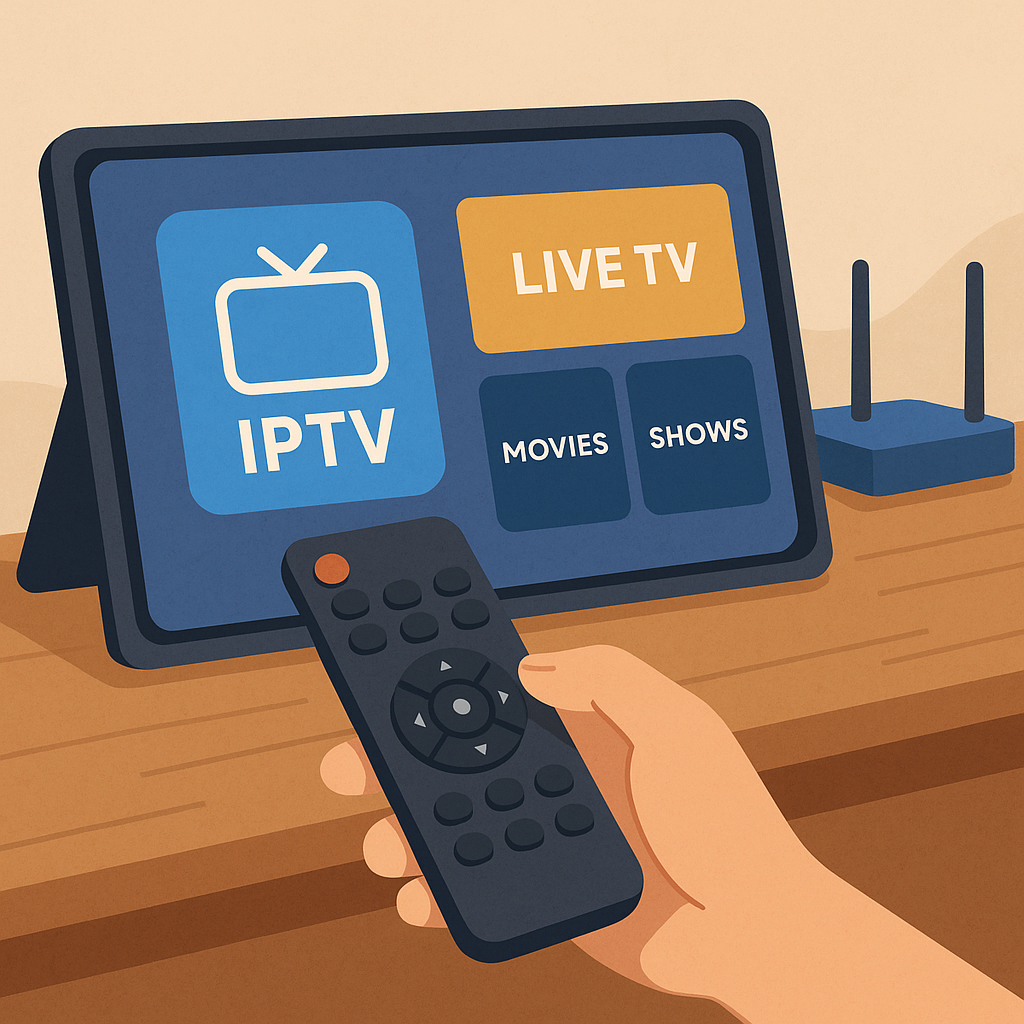
How to use IPTV Smarters Pro is one of the most common questions Canadian viewers ask when they are ready to enjoy live TV, sports, movies, and series without a complicated cable box.
At Primestelly, we know that a lot of viewers simply want an easy, reliable way to sign in, find their channels, and start watching without feeling technical. The good news is that IPTV Smarters Pro is designed to be friendly once you understand the basic steps.
IPTV Smarters Pro is not an IPTV subscription by itself. It is an IPTV player app. Think of it like a remote control and viewing screen for the IPTV service you already have. Your provider gives you the login details, and the app helps organize your live channels, TV guide, movies, and shows.
This guide walks you through the full setup in plain English. We will cover what you need before you start, how to log in, how to use live TV, how to open the TV guide, how to watch VOD, and what to do if something does not work as expected.
Whether you are using a Firestick, Android TV box, smartphone, tablet, or smart TV, in most cases the setup follows the same simple pattern. By the end, you should feel comfortable using IPTV Smarters Pro every day.
What Is IPTV Smarters Pro and Why Do Canadians Use It?
IPTV Smarters Pro is a popular IPTV player app that lets you access IPTV content from a subscription provider. It can show live TV channels, electronic program guide information, catch-up if your provider supports it, video on demand, series, and sometimes multiple user profiles.
The app is popular in Canada because it feels familiar. The menus are usually simple, the layout is clean, and it works on many everyday devices. For people moving away from traditional cable, it can feel like a comfortable middle ground: modern streaming with a TV-style guide.
Here is the key thing to remember: IPTV Smarters Pro does not create or sell channels. It only plays the content linked to your IPTV account. That means your viewing experience depends on three things:
- Your IPTV provider and plan quality
- Your internet speed and home Wi-Fi
- The device you are using
- The login method your provider supports
- The app settings you choose
If you are still comparing apps, you may also like Primestellys helpful overview of the best IPTV apps for beginners in Canada. It explains which apps feel easiest for new users and where IPTV Smarters Pro fits in.
For many households, IPTV Smarters Pro is a strong choice because it combines live TV, guide information, and on-demand content in one place. It is not perfect for every device, but it is one of the most widely recognized IPTV player options.
What You Need Before Using IPTV Smarters Pro
Before you install or open the app, take a minute to gather what you need. This avoids most setup frustrations. In most cases, the process is quick when your login details are correct and your internet connection is steady.
You will usually need:
- An active IPTV subscription
- Your username and password
- A server URL or portal URL
- A compatible device
- A stable internet connection
- Enough storage space for the app
Your provider may give you login details in one of two common formats. The first is called Xtream Codes API, which usually includes a username, password, and server URL. The second is an M3U playlist link, which is one long link containing your account details.
If your provider offers both, Xtream Codes is often easier for everyday viewers because you enter three simple fields. It also tends to organize live TV, movies, series, and the EPG more neatly inside IPTV Smarters Pro.
Your internet connection matters too. For smooth HD streaming, many viewers do well with at least 25 Mbps for one stream. For 4K, a faster and more stable connection is better. If several people in your home are streaming, gaming, or working online at the same time, you may need more speed.
If you are not sure how many screens your household can use at once, Primestelly has a practical guide on how many devices you can use with IPTV in Canada. It is worth checking before you sign in on every phone, TV, and tablet in the house.
Finally, make sure you are using a suitable device. IPTV Smarters Pro is commonly used on Android devices, Firestick, Android TV boxes, phones, tablets, and some smart TV environments depending on app availability. App availability can change, so if one device does not support the app easily, another player or setup method may be better.
How to Use IPTV Smarters Pro: Step-by-Step Setup
Now let us go through the actual setup. The exact screen names can vary slightly by device or app version, but the overall process is usually the same. Take your time and enter the login details carefully. A small typo in the server URL, username, or password is one of the biggest reasons setup fails.
- Install IPTV Smarters Pro or a compatible IPTV Smarters app on your device.
- Open the app and accept the basic terms if prompted.
- Choose the login method your provider gave you.
- Enter your account details exactly as provided.
- Wait for channels, movies, series, and TV guide data to load.
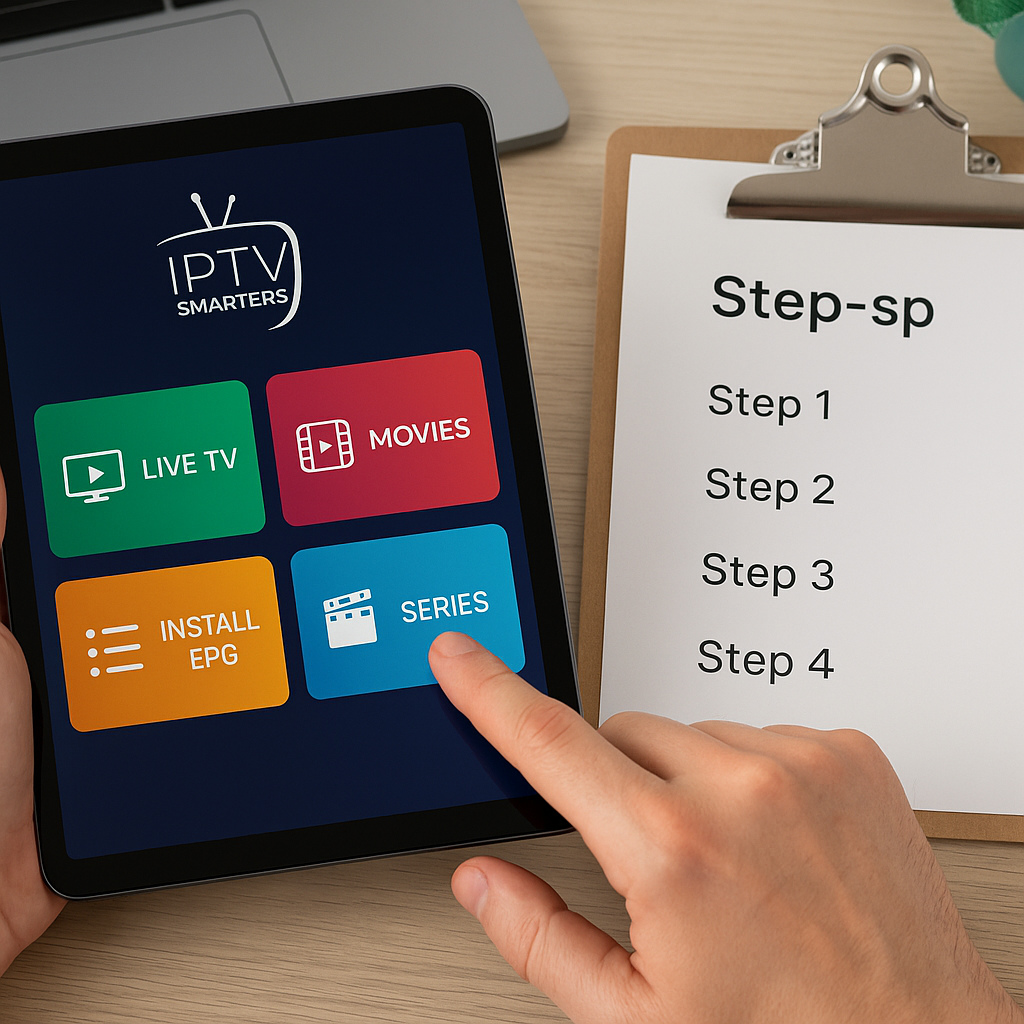
- Open Live TV, Movies, Series, or EPG from the main dashboard.
- Adjust settings if the picture, audio, or guide needs improvement.
If that sounds simple, that is because it usually is. The only part that needs extra care is entering the account information. Copy and paste if possible, especially with long URLs.
Step 1: Download IPTV Smarters Pro on Your Device
Start by installing the app on the device you want to watch on. On Android-based devices, you may find IPTV Smarters Pro or a similar IPTV Smarters player through an app store or through the official app source recommended by your provider. On some smart TVs, app availability may depend on the brand, country, and operating system.
For Firestick users, installation may involve searching the Amazon Appstore or using a safe sideloading method if the app is not currently listed. If your main device is an Amazon Firestick, you can follow Primestellys dedicated IPTV on Firestick Canada setup guide for device-specific help.
When downloading any IPTV player, keep these safety tips in mind:
- Use trusted app stores when available
- Avoid random download links from unknown websites
- Check the app name carefully
- Keep your device software updated
- Do not share your IPTV password publicly
If IPTV Smarters Pro is not available or does not work well on your device, do not panic. There are many other good IPTV players. Primestelly compares several options in its guide to the best IPTV players compared in Canada, which can help you choose a backup.
Step 2: Choose Your Login Method
Once the app opens, you will normally be asked how you want to add your user account. The most common options are login with Xtream Codes API, load your playlist or file URL, or play a single stream. For a normal IPTV subscription, you will almost always use Xtream Codes API or an M3U playlist URL.
Xtream Codes login usually asks for:
- Any name for the playlist
- Your IPTV username
- Your IPTV password
- Your provider server URL
M3U login usually asks for:
- A playlist name
- The full M3U playlist URL
- Sometimes a separate EPG URL
- Optional settings for refresh timing
For beginners, Xtream Codes is often cleaner. It is easier to type and usually loads categories, VOD, series, and guide data in a more organized way. If your provider gave you a server URL, username, and password, choose that method.
If your provider only sent a long M3U link, choose the playlist URL option. Be careful not to miss any characters. A broken link may still look almost correct, but the app will not load your content.
Step 3: Add Your IPTV Subscription Details
Now enter your details. In the playlist name field, you can type something simple like Primestelly, My IPTV, Family TV, or Canada Channels. This name is just for your app dashboard. It does not need to match your account username.
Then add your username, password, and server URL exactly as provided. Pay attention to capital letters, numbers, dashes, and special characters. If you are using a phone or tablet, copying and pasting from your welcome email can prevent mistakes.
After entering the details, tap Add User, Login, or Save depending on your version of the app. IPTV Smarters Pro should begin downloading account data. This may take a minute, especially if your subscription includes many channels and a large VOD library.
When the login is successful, you may see several sections such as:
- Live TV
- Movies
- Series
- Live with EPG
- Catch Up
- Settings
If you see an error message, do not keep trying random changes. First check whether the server URL includes the correct beginning, such as http or https, and whether there are no spaces before or after the text. Then confirm your subscription is active.
Step 4: Learn the IPTV Smarters Pro Home Screen
After logging in, take a moment to understand the home screen. This is where many new users feel unsure, but it is actually quite straightforward. The app divides content into sections so you do not have to scroll through everything at once.
Live TV is where you watch channels in real time. Movies is the video-on-demand movie library if your plan includes VOD. Series is where TV shows are usually organized by season and episode. EPG shows the TV guide, which helps you see what is on now and what is coming next.
Common home screen sections include:
- Recently added movies
- Live TV categories
- Series categories
- TV guide or EPG
- Account information
- Settings and player options
Spend a few minutes opening each section. You cannot hurt anything by browsing. The more familiar the layout becomes, the easier it is to find channels quickly when a game, show, or movie is starting.
Step 5: Watch Live TV, Use the EPG, and Find VOD
To watch live TV, open the Live TV section and choose a category. Categories might include Canada, USA, UK, Sports, News, Kids, Movies, French, International, or 24/7 channels depending on your provider. Select a channel and wait a few seconds for it to load.
While watching, you can often press the select button on your remote to bring up player controls. Depending on the device, you may see options for full screen, audio track, subtitles, favourite, or external player. On a phone or tablet, you may tap the screen to show controls.
The EPG, or electronic program guide, is especially useful for people used to cable TV. It lets you browse channels by time and see program names. If the guide does not appear immediately, give it time to load or use the app settings to refresh EPG data.
For VOD, open Movies or Series. If you enjoy on-demand libraries, Primestelly has a separate article about IPTV VOD in Canada for movies and shows. VOD is one of the reasons many viewers like IPTV: you can watch live channels and still enjoy on-demand entertainment from the same app.
Helpful viewing tips:
- Add favourite channels for faster access
- Use categories instead of scrolling endlessly
- Refresh the guide if listings look empty
- Try another player mode if video is choppy
- Restart the app after large updates
IPTV Smarters Pro Settings That Improve Your Experience
Once the basics are working, a few settings can make IPTV Smarters Pro easier to use. You do not need to change everything. In most cases, small adjustments are enough.
Start with the built-in player settings. IPTV Smarters Pro may offer native player, hardware decoder, software decoder, or external player options depending on the version and device. If one channel has audio but no picture, or picture but no sound, switching player or decoder settings may help.
Next, check the EPG settings. If the guide is missing, out of date, or showing the wrong time, look for refresh EPG, update TV guide, or time shift settings. Canadian viewers should also make sure the time zone on the device itself is correct.
Useful settings to review include:
- Auto-start on boot for TV devices
- EPG refresh interval
- Parental control options
- Player selection
- Stream format options
- Clear cache button
Parental controls are worth using if children watch on the same device. Some versions of IPTV Smarters Pro allow you to lock categories or set a PIN. If family viewing is a priority, you may also find Primestellys guide to kid-friendly IPTV channels and controls in Canada helpful.
If buffering happens, do not assume the app is broken. Buffering can come from Wi-Fi interference, slow internet, a crowded network, device memory, or temporary server congestion. For a full checklist, read Primestellys IPTV buffering fix guide for Canada.
Here are quick fixes that help many viewers:
- Restart your modem and router
- Move closer to the Wi-Fi router
- Use Ethernet if possible
- Close unused apps on the device
- Clear the IPTV app cache
- Try a lower quality stream category
Remember, the goal is not to make the app complicated. The goal is to make it stable and comfortable for your home. Once your settings feel right, you may not need to touch them again for weeks or months.
Using IPTV Smarters Pro on Popular Devices in Canada
IPTV Smarters Pro works similarly across many devices, but the installation experience can vary. Some devices are very simple. Others require extra steps. Choosing the right device can make the whole IPTV experience smoother.
On Android TV boxes, IPTV Smarters Pro is often easy to install and navigate with a remote. Many Canadian viewers choose Android boxes because they offer flexibility, storage, and access to many IPTV players. If you are shopping for a new box, Primestellys guide to the best Android TV boxes for IPTV in 2026 can help.
On Firestick, the app can work well, especially for people who want a small and affordable streaming device. Firestick remotes are simple, but storage can be limited, so clearing cache once in a while helps.
On phones and tablets, IPTV Smarters Pro is convenient for watching away from the main TV. The smaller screen makes the guide feel different, but touch controls are easy. For mobile viewers, Primestelly also covers IPTV on Android and iPhone in Canada.
On Apple TV, setup may depend on which IPTV apps are available and supported. IPTV Smarters-style apps can vary across the Apple ecosystem. If you are using Apple TV specifically, read the Apple TV IPTV setup guide for a more device-focused walkthrough.
On Samsung and LG smart TVs, app availability can change. Some users prefer installing an IPTV player directly on the TV, while others prefer using a Firestick, Chromecast, or Android TV box connected by HDMI. If you want smart TV-specific help, Primestelly has guides for installing IPTV on Samsung Smart TV and installing IPTV on LG webOS.
Device choice comes down to comfort. Ask yourself:
- Do I want the easiest remote control?
- Do I need lots of app options?
- Will kids or seniors use it?
- Do I travel with the device?
- Is my Wi-Fi strong near the TV?
- Do I prefer a direct smart TV app?
If you are deciding between two popular device types, Primestellys Firestick vs Android TV Box comparison is a good next read.
IPTV Smarters Pro vs Other IPTV Players
IPTV Smarters Pro is a strong all-around player, but it is not the only option. Some apps are simpler. Some are more customizable. Some work better on specific devices. The best choice depends on how you watch.
IPTV Smarters Pro is often best for viewers who want a balanced experience. It has live TV, EPG, VOD, series, favourites, and multi-screen options in many versions. It feels familiar to people who want a cable-style layout without too much technical setup.
Other IPTV players may be better if you want advanced guide customization, very fast channel switching, or a cleaner minimalist interface. For example, some players are designed mainly for live TV, while others focus heavily on playlists and guide management.
Here is a simple comparison:
- IPTV Smarters Pro: good all-around option for live TV, VOD, and beginners
- TiviMate-style players: popular for advanced live TV guide features
- Smart TV IPTV apps: convenient when you do not want another device
- Mobile IPTV apps: useful for phones and tablets
- Backup IPTV apps: helpful when one app has a temporary issue
The good news is that you are not locked into one app forever. Your IPTV subscription login may work with more than one compatible player, depending on your provider and plan rules. That means you can test what feels best.
If you like comparing options before deciding, Primestellys IPTV player showdown for Canada breaks down popular players in a practical way. It is especially useful if IPTV Smarters Pro works, but you want to know whether another app might feel smoother.
Many experienced viewers keep a backup app installed. That way, if one app update causes a temporary issue, they can still watch. For ideas, see Primestellys guide to the best backup IPTV apps in Canada.
Common Mistakes to Avoid
Most IPTV Smarters Pro problems come from small, avoidable mistakes. The good news is that once you know what to watch for, setup becomes much easier. Here are the most common issues Canadian viewers run into.
Mistake 1: Using the app without an active IPTV subscription. IPTV Smarters Pro does not include channels by default. If you install the app and see no content, that is normal. You need valid subscription details from your provider.
Mistake 2: Typing login details manually when copy and paste is available. Usernames, passwords, and URLs can be sensitive. One missing symbol can stop everything from working. Copy and paste whenever you can.
Mistake 3: Confusing the server URL with the M3U link. Xtream Codes login needs a server URL plus username and password. M3U login needs the full playlist link. They are not always interchangeable.
Mistake 4: Installing apps from unsafe sources. Avoid unknown files from random sites. Use trusted app stores or guidance from your provider. This protects your device and your personal information.
Mistake 5: Blaming the app for every buffering issue. Buffering can be caused by Wi-Fi, router placement, overloaded devices, or internet congestion. Test another channel, restart your router, and check your connection before assuming the app is the problem.
Mistake 6: Sharing one account across too many devices. Many IPTV plans limit simultaneous streams. If too many people watch at once, playback may stop or the account may be restricted. Check your plan rules first.
Mistake 7: Ignoring updates and cache buildup. Apps and devices need light maintenance. Updating the app, restarting the device, and clearing cache can prevent many small issues.
A simple maintenance routine helps:
- Restart your streaming device weekly
- Clear cache when menus slow down
- Keep your device storage from filling up
- Update the app when safe to do so
- Save your login details somewhere secure
- Use favourites to reduce daily scrolling
It is also smart to choose a trustworthy IPTV subscription in the first place. If you are still evaluating providers, Primestellys guide to buying an IPTV subscription safely in Canada explains what to look for before paying.
Finally, if you have questions about rules and responsible streaming, read Primestellys article on whether IPTV is legal in Canada. It gives helpful context for viewers who want to make informed choices.
FAQ
Is IPTV Smarters Pro an IPTV service?
No. IPTV Smarters Pro is an IPTV player app, not a channel provider. You need an active IPTV subscription from a provider before the app can show live TV, VOD, series, or guide information.
What login details do I need for IPTV Smarters Pro?
In most cases, you need either Xtream Codes details or an M3U playlist. Xtream Codes usually includes a username, password, and server URL. An M3U setup usually uses one long playlist link and sometimes a separate EPG link.
Why is my IPTV Smarters Pro guide not showing?
The EPG may need time to load, or it may need to be refreshed in settings. Also check your device time zone. If the guide is still empty, your provider may need to confirm that EPG is included with your account.
Can I use IPTV Smarters Pro on more than one device?
You can install the app on multiple devices, but simultaneous viewing depends on your IPTV plan. Some plans allow one stream at a time, while others allow more. Always check your provider rules before sharing the account across devices.
What should I do if IPTV Smarters Pro keeps buffering?
Start by restarting your router and device, then test another channel. Move closer to Wi-Fi or use Ethernet if possible. Clear the app cache and close background apps. If buffering continues on all channels, contact your IPTV provider for support.
Final Thoughts: Learning how to use IPTV Smarters Pro is easier than it first appears. Once you install the app, enter the correct login details, understand the home screen, and adjust a few settings, it becomes a comfortable daily way to watch live TV, sports, movies, and shows. If you want a smooth IPTV experience with friendly guidance for Canadian viewers, Primestelly is here to help you get started with confidence.