Backup IPTV apps are one of the simplest ways to make your streaming life feel calmer, especially when you just want the hockey game, evening news, a movie, or a kids’ show to start without fuss. With Primestelly, many Canadian viewers already enjoy a reliable IPTV subscription, but having one or two extra player apps installed gives you a practical safety net.
Think of backup IPTV apps like keeping a spare phone charger in the kitchen drawer. You may not need it every day, but when your main setup acts up, the good news is that you do not have to panic, reinstall everything, or miss the first period.
A lot of viewers assume IPTV problems always come from the service itself. In most cases, the app, device storage, app cache, internet connection, or TV operating system can also play a role. Switching to a backup app can quickly tell you whether the issue is with the player or something broader.
This guide is written for everyday Canadian viewers, not tech experts. We will walk through which backup IPTV apps are worth keeping, how to choose them, how many you really need, and how to set them up without making your TV screen feel complicated.
By the end, you will have a clear, practical backup plan for Firestick, Android TV, Apple TV, Chromecast, Samsung, LG, phones, tablets, and more.
Why Backup IPTV Apps Matter in Canada
IPTV has become a regular part of home entertainment across Canada because it can bring live TV, sports, movies, international channels, and on-demand content into one place. But like any streaming setup, it depends on more than one piece working properly. Your internet, device, app, playlist format, server connection, and home Wi-Fi all matter.
That is why backup IPTV apps are so useful. If your regular app freezes, fails to load the guide, or suddenly refuses to open after an update, you can try another app that reads the same subscription details in a slightly different way.
A backup app can help when:
- Your main app crashes after an update
- The TV guide is not loading properly
- Channels open slowly on one player
- Your device is low on storage
- A smart TV app is temporarily unavailable
- You want a simpler app for guests or kids
For many households, the best setup is not one perfect app. It is one favourite everyday app plus one reliable backup app already installed, logged in, and tested. If you are still learning the basics, Primestelly’s guide to the best IPTV apps for beginners in Canada is a helpful companion because it explains app choices in a simple, viewer-friendly way.
The main idea is peace of mind. When a big live event is starting, you do not want to search app stores, type long portal URLs, or wonder where your username went. You want an easy Plan B.
What Makes a Good Backup IPTV App?
A good backup IPTV app is not always the flashiest app. In fact, the best backup is often the one that opens quickly, accepts your login easily, and plays channels with minimal adjustments. You are looking for stability, compatibility, and simplicity.
When choosing backup IPTV apps, look for these practical features:
- Support for Xtream Codes or M3U playlists
- Simple sign-in and profile saving
- Fast channel loading
- Clear live TV, movies, and series sections
- Electronic program guide support
- Works well with your remote control
- Regular updates from the developer
For everyday use, the interface matters more than people think. If an app technically works but your family cannot find the channel list, it may not be a good backup for your living room. A lot of viewers prefer a primary app with a polished layout and a backup app that is plain but dependable.
Compatibility is also important. Some IPTV players work beautifully on Android TV boxes but feel awkward on phones. Others are excellent on Apple TV but not available on Firestick. If you use several screens at home, check Primestelly’s guide on how many devices you can use with IPTV in Canada so your backup plan fits your actual household setup.
Also remember that IPTV player apps are not usually the service itself. They are tools that display the content from your IPTV subscription. Your provider gives you login details, while the app gives you the viewing interface.
Best Backup IPTV Apps to Keep Installed
There is no single backup IPTV app that is perfect for every Canadian household. The right choice depends on your device, comfort level, and whether you prefer a simple layout or more advanced options. Still, a few apps are commonly used because they support popular IPTV login formats and work across many devices.
Here are some of the best backup IPTV apps to consider keeping installed:
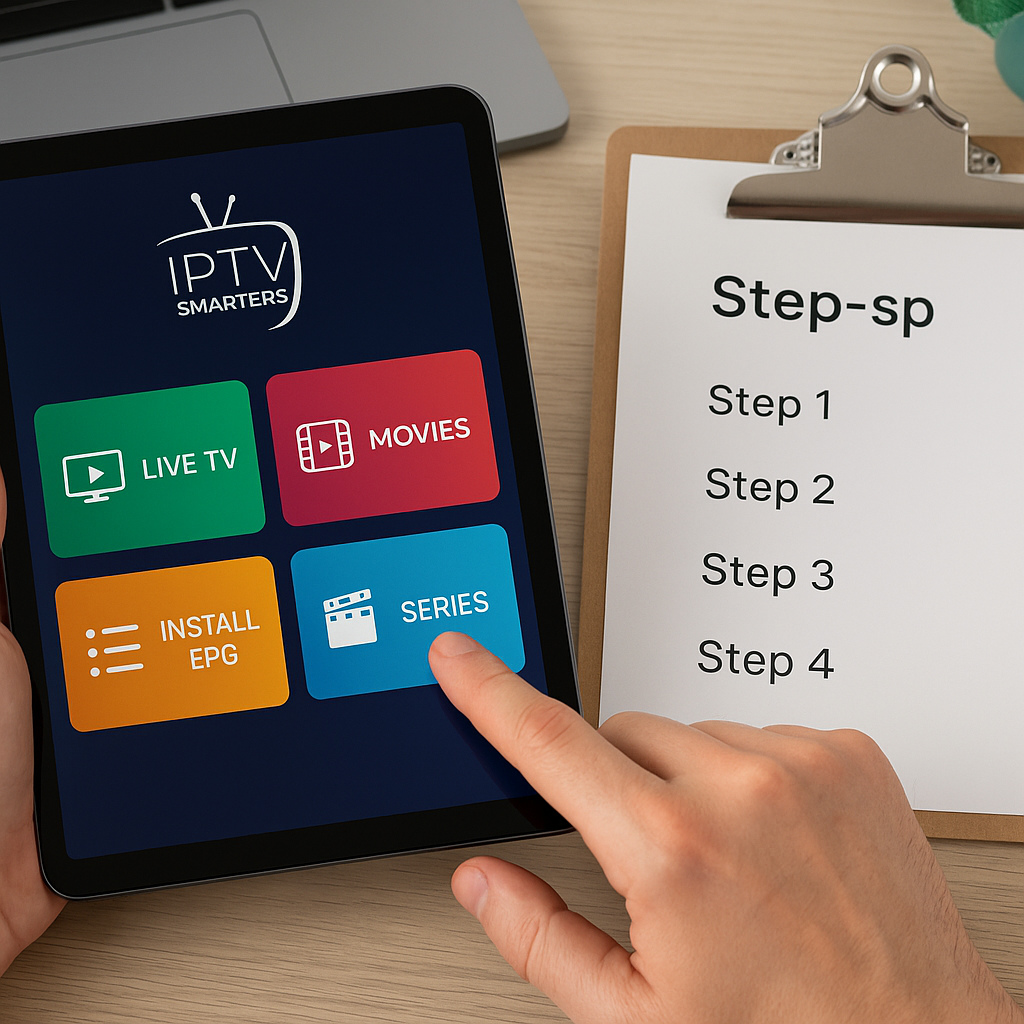
- IPTV Smarters Pro: friendly layout and familiar categories
- TiviMate: polished TV-style interface for Android-based devices
- XCIPTV Player: simple, flexible, and easy to navigate
- OTT Navigator: customizable for viewers who like control
- VLC Media Player: basic but useful for testing M3U links
- IBO Player or similar smart TV players: handy on Samsung and LG TVs
IPTV Smarters Pro is popular because many people find it easy to understand. It usually separates live TV, movies, and series into clear areas. If someone in the home is not comfortable with technology, that familiar layout can make a big difference.
TiviMate is often loved by Android TV and Firestick users because it feels more like a traditional TV guide. It can be an excellent main app, but it also works well as a backup if your other player has guide problems. For deeper app comparisons, you may enjoy Primestelly’s best IPTV players compared in Canada, which looks at the differences in a more detailed way.
XCIPTV is another practical choice. It tends to be straightforward, and many viewers keep it installed because it does not require much learning. If your goal is simply to get channels playing quickly when another app misbehaves, that simplicity is valuable.
OTT Navigator is better for people who enjoy tweaking layouts, filters, and channel groups. It can be a little more involved, so it may not be the first choice for everyone, but it is powerful on Android-based devices.
VLC is not the most comfortable full-time IPTV experience for families, but it is very useful as a testing tool. If a playlist opens in VLC, you know the link can work. If it fails across several apps, the issue may be elsewhere.
Primary App vs Backup App: What Is the Difference?
Your primary IPTV app is the one you use every day. Your backup IPTV app is the one you keep ready in case the first one has trouble. They do not need to do the exact same job. In fact, it is often better if they are different types of apps.
Here is a simple comparison:
- Primary app: best layout, best guide, most comfortable for daily viewing
- Backup app: fast, simple, already logged in, easy to test
- Primary app: may include favourites, parental controls, and custom groups
- Backup app: may have fewer extras but should launch reliably
- Primary app: chosen for enjoyment
- Backup app: chosen for convenience during problems
For example, you might use TiviMate as your main app on an Android TV box because the guide looks great. Then you might keep IPTV Smarters or XCIPTV installed as your backup because it is easy to log into and understand. On a smart TV, you may use one app from the TV store as your main option and keep another compatible player activated for emergencies.
This is similar to comparing devices. Some viewers love Firestick because it is affordable and familiar. Others prefer Android TV boxes because they can offer more storage and flexibility. If you are deciding where your backup app should live, the Firestick vs Android TV Box for IPTV Canada guide explains the practical differences clearly.
The goal is not to install ten apps and create confusion. The goal is to keep one or two dependable options ready so you can switch quickly when needed.
Best Backup IPTV Apps by Device
The best backup IPTV apps depend heavily on the screen you use most. A family watching on a living room Firestick has different needs than someone watching on an iPad during travel. Let’s look at common Canadian setups.
For Firestick: IPTV Smarters, TiviMate, XCIPTV, and OTT Navigator are common choices. Firestick is popular because it is affordable, portable, and works with many IPTV players. If you need installation help, see Primestelly’s Firestick IPTV setup guide for Canada.
For Android TV boxes: TiviMate, IPTV Smarters, XCIPTV, and OTT Navigator are strong options. Android boxes often provide more storage than smaller streaming sticks, which makes keeping a backup app installed easier. For hardware ideas, Primestelly also covers the best Android TV boxes for IPTV in 2026.
For Samsung Smart TV: available apps depend on the Samsung app store in your region and model year. Many viewers use smart TV IPTV players such as IBO-style apps or other supported players. If Samsung is your main screen, follow the Samsung Smart TV IPTV installation guide before choosing your backup.
For LG Smart TV: app availability also depends on webOS and the LG Content Store. Smart TV apps can be convenient because you do not need an extra device, but keeping a separate streaming stick as backup can be wise. Primestelly’s LG webOS IPTV installation guide is a useful starting point.
For Apple TV: look for IPTV players that are available in the App Store and support your login method. Apple TV can feel smooth and polished, but app selection is different than Android. If Apple TV is your main device, use the Apple TV IPTV setup guide to make sure your player is configured properly.
For Chromecast with Google TV: Android TV apps such as TiviMate, IPTV Smarters, and XCIPTV may be available depending on your setup. If you cast from a phone, keep a mobile backup as well. The guide on setting up IPTV on Chromecast explains the options.
For phones and tablets: IPTV Smarters-style apps, GSE-style apps, VLC, and other mobile IPTV players can work well. Mobile is especially useful as an emergency screen if the living room device needs troubleshooting. For more help, see Primestelly’s mobile streaming guide for Android and iPhone in Canada.
Step-by-Step: How to Set Up Backup IPTV Apps
Setting up backup IPTV apps is easier when you do it before you need them. Do not wait until game night or a family movie evening. Take 15 to 20 minutes on a quiet day and prepare your backup properly.
Here is a simple step-by-step process:
- Choose your main device. Start with the TV or streaming box you use most often.
- Install one backup app. Pick an app that supports your subscription format, such as Xtream Codes or M3U.
- Enter your IPTV login details carefully. Check the username, password, and server or portal URL.
- Let the app load fully. Give the channel list and guide time to update.
- Test live TV. Open a few local, sports, news, and entertainment channels.
- Test VOD if included. Try one movie or episode to confirm the section loads.
- Add a few favourites. Save the channels your household uses most.
- Restart the app. Close and reopen it to make sure the login is saved.
Once the backup works, leave it alone. You do not need to customize every setting. The best backup IPTV apps are ready, simple, and predictable.
If you are setting up IPTV for the first time, it may help to read Primestelly’s complete IPTV setup guide for Canada. It explains the basic flow from subscription to app installation in a beginner-friendly way.
One important note: do not delete your backup app just because you have not used it in a few weeks. That is exactly how a backup works. It sits quietly until the day it saves you time.
Keeping Your Login Details Organized
Many IPTV problems become more stressful simply because viewers cannot find their login details. Your backup IPTV apps are only useful if you can sign in again when needed. A little organization makes everything easier.
Keep these details somewhere safe:
- Provider name
- Username
- Password
- Server URL or portal URL
- M3U link if provided
- Support contact or order email
Use a password manager, a secure note, or a printed copy stored safely at home. Avoid saving important subscription details only in a text message thread that could be deleted. Also avoid sending login details to people outside your household.
If your provider offers multiple connection formats, keep both if possible. Some apps prefer Xtream Codes login, while others use an M3U playlist. Having both available gives you more flexibility when testing backup IPTV apps.
It is also smart to label your apps clearly in your own notes. For example, write down: Main app on Firestick is TiviMate. Backup app on Firestick is IPTV Smarters. Phone backup is VLC. This sounds simple, but it helps a lot when another family member needs to help.
If you are still choosing or renewing a plan, Primestelly’s guide on how to buy an IPTV subscription safely in Canada is worth reading so you know what details and support to expect.
Backup IPTV Apps for Sports, Movies, and Families
Different households use IPTV in different ways. Some people care most about NHL, NBA, NFL, CFL, soccer, and pay-per-view events. Others mainly watch movies, series, international channels, or kids’ programming. Your backup IPTV apps should match your real viewing habits.
For sports fans, speed matters. You want a backup app that opens live channels quickly and lets you find favourites without scrolling through hundreds of categories. If sports are your priority, you may also appreciate Primestelly’s guide to watching sports with IPTV in Canada.
For movie and series lovers, the VOD layout matters more. Some apps display posters, categories, search, and recently added titles more clearly than others. If your family uses on-demand content often, test your backup app’s VOD section before assuming it is ready. You can learn more about on-demand viewing in the IPTV VOD Canada guide.
For families with kids, simplicity and controls are important. A backup app should not make it too easy for children to wander into inappropriate categories. Look for apps that support favourites, locked sections, or at least a clean layout. Primestelly’s article on kid-friendly IPTV channels and controls is helpful if you are building a family-safe setup.
Here are smart family backup tips:
- Create a favourites list with safe channels
- Use app locks where available
- Keep adult categories hidden if possible
- Teach kids which app to use
- Test cartoons and family channels in advance
- Keep the backup layout simple
In most cases, the best family backup is not the most advanced player. It is the player everyone can use without calling the most tech-savvy person in the house.
Common Mistakes to Avoid
Backup IPTV apps are simple, but a few common mistakes can make them less useful. The good news is that these are easy to avoid once you know them.
Here are the biggest mistakes:
- Installing too many apps: More apps can create confusion instead of confidence.
- Never testing the backup: An untested backup may fail when you need it.
- Forgetting login details: Keep credentials organized and secure.
- Using only one device: If the device fails, the app cannot help.
- Ignoring updates: Outdated apps may crash or lose compatibility.
- Blaming the service too quickly: Sometimes the player app is the issue.
Another mistake is treating a backup app as a complete replacement for troubleshooting. If every app buffers, freezes, or fails to open channels, the issue may be your internet connection, Wi-Fi strength, device performance, or account status. Switching apps is a useful test, not a magic fix for every situation.
Viewers also sometimes delete a working app because they prefer a new one. Instead, keep the old reliable app installed if storage allows. A familiar older player can be a great backup when a newer app update creates problems.
Finally, avoid downloading random app files from unknown websites. If you use Android-based devices, be careful where apps come from. Stick with known app stores or trusted installation guidance whenever possible.
Troubleshooting: When One App Works and Another Does Not
One of the best reasons to keep backup IPTV apps installed is troubleshooting. If one app fails but another works, you have learned something important. The service may be fine, while the app needs a refresh, update, or settings change.
Try this calm troubleshooting order:
- Open your backup app. Test the same channel there.
- Restart the main app. Fully close it, then reopen it.
- Refresh the playlist or guide. Many apps have a reload option.
- Restart your device. Unplug it for 30 seconds if needed.
- Check Wi-Fi strength. Move closer to the router or try Ethernet.
- Clear app cache. This helps especially on Firestick and Android TV.
- Test another device. Try a phone, tablet, or second TV if allowed.
If your backup app works smoothly, your main app may be the problem. Consider updating it, clearing cache, or reinstalling it. If both apps struggle, your connection or device may need attention.
Buffering is one of the most common complaints, but it is not always caused by IPTV service quality. Wi-Fi congestion, old routers, low device storage, and background apps can all contribute. For a deeper checklist, read Primestelly’s IPTV buffering fix guide for Canada.
Also pay attention to timing. If problems happen only during major sports events or evening peak hours, your home internet or ISP routing may be part of the issue. A backup app can help you confirm whether the player is causing the problem, but it cannot fix a weak connection by itself.
Safety, Privacy, and App Store Basics
Backup IPTV apps should make streaming easier, not riskier. Be thoughtful about where you download apps, what permissions they request, and how you protect your connection.
Use these safety basics:
- Download from official app stores when available
- Avoid unknown files from suspicious websites
- Do not share your IPTV login publicly
- Keep your device operating system updated
- Remove apps you no longer trust
- Use strong home Wi-Fi passwords
Some Canadian viewers also choose to use a VPN for privacy, especially when streaming on public Wi-Fi or when they want an added layer of connection security. A VPN is not a cure-all, and it should not be used to break laws or terms of service, but it can be useful for privacy-minded households. If you are curious, Primestelly has a practical guide to the best VPN for IPTV Canada in 2026.
It is also worth understanding that laws, platform policies, and streaming habits continue to evolve. If you want more context, Primestelly’s article on whether IPTV is legal in Canada explains the topic in a clear way for everyday viewers.
In most cases, the safest approach is simple: use a reputable IPTV provider, install recognized player apps, keep your login private, and avoid suspicious downloads promising unlimited content with no clear source.
How Many Backup IPTV Apps Do You Really Need?
Most Canadian households do not need a dozen backup IPTV apps. That can make the TV feel cluttered and confusing. A better approach is to keep a small, tested backup system.
For many viewers, this is enough:
- One main IPTV app on the main TV
- One backup IPTV app on the same device
- One backup option on a phone or tablet
- Optional second device for the living room
If you watch IPTV every day, especially live sports or international channels, two backup options may be worthwhile. For casual viewers, one backup app is usually enough. The key is testing, not collecting apps.
Here are a few example setups:
- Simple Firestick home: TiviMate as main, IPTV Smarters as backup
- Smart TV home: Samsung or LG app as main, Firestick app as backup
- Apple household: Apple TV app as main, iPhone app as backup
- Sports household: Fast live TV app as main, simple backup with favourites
- Family household: Main app with parental settings, backup with safe favourites
If you are comparing overall IPTV options, Primestelly’s best IPTV service comparison and reviews can help you understand how service quality, app compatibility, channel selection, and support all fit together.
Remember, backup IPTV apps are part of a bigger viewing plan. A strong subscription, a stable internet connection, a suitable device, and a simple backup app all work together. When those pieces are in place, streaming feels much less stressful.
FAQ
What are backup IPTV apps?
Backup IPTV apps are extra IPTV player apps you keep installed in case your main app crashes, updates badly, loads slowly, or has guide issues. They use your IPTV subscription details to help you keep watching with less interruption.
Do backup IPTV apps include channels?
In most cases, no. IPTV apps are usually players, not channel providers. You still need an IPTV subscription from a provider such as Primestelly, then you enter your login details into the app.
What is the best backup IPTV app for Firestick?
Many Firestick users keep IPTV Smarters, TiviMate, or XCIPTV as a backup. The best choice depends on what feels easiest for your household and which app supports your subscription format.
Should I install backup IPTV apps on my smart TV or another device?
If your smart TV has good app options, installing a backup there can help. However, many viewers also keep a Firestick, Android TV box, phone, or tablet ready because it gives them another device if the TV app has problems.
How often should I test my backup IPTV apps?
Test your backup apps once a month or before major events you do not want to miss. Open the app, load a few channels, check the guide, and confirm your login is still saved.
Final Thoughts: Backup IPTV apps are not about making your setup complicated. They are about making it calmer. With one main app, one tested backup, organized login details, and a reliable provider, you can enjoy live TV, sports, movies, and family entertainment with fewer surprises. If you want a smoother Canadian IPTV experience, Primestelly is here to help you stream with confidence and keep your favourite shows within easy reach.