Improve Wi-Fi for IPTV streaming and you can make live TV, sports, movies, and 4K channels feel much smoother at home without becoming a networking expert.
At Primestelly, we speak with a lot of Canadian viewers who think their IPTV service is the problem, when in many cases the real issue is weak Wi-Fi, router placement, overloaded devices, or a home network that needs a few small adjustments.
The good news is that you do not need to rewire your whole house or buy the most expensive equipment right away. A few practical changes can reduce buffering, improve picture quality, and make channel switching feel more reliable.
This guide is written for everyday viewers in Canada: families watching hockey on Saturday night, parents streaming kids’ channels upstairs, condo residents dealing with crowded Wi-Fi, and anyone who simply wants IPTV to work better.
We will walk through what matters most, what to check first, what to upgrade only if needed, and how to build a Wi-Fi setup that supports smoother IPTV streaming in 2026 and beyond.
Why Wi-Fi Matters So Much for IPTV Streaming
IPTV is different from browsing websites or checking email. When you watch live TV, your device needs a steady stream of data arriving at the right time. If the connection pauses, drops, or becomes unstable, you may see freezing, buffering, audio delay, blurry picture, or a channel that refuses to load.
A lot of viewers focus only on their internet plan speed. Speed is important, but Wi-Fi quality is just as important. You can have a fast internet plan coming into your home and still get poor IPTV performance if the signal between your router and your TV device is weak.
Think of it like water pressure. Your internet plan is the main supply line, but your Wi-Fi is the pipe carrying that supply to each room. If the pipe is blocked, too narrow, or too far away, the experience at the tap is not as good.
Good Wi-Fi helps IPTV by improving:
- Live channel stability
- 4K and HD picture quality
- Faster channel loading
- Less buffering during sports
- Smoother VOD playback
- Better performance on multiple devices
If you are not sure whether your internet plan itself is enough, it is worth comparing your current package with the practical recommendations in this guide to internet speed for IPTV in Canada. Once the plan is reasonable, Wi-Fi becomes the next big piece of the puzzle.
How to Improve Wi-Fi for IPTV Streaming: Start With the Basics
Before buying a new router or changing providers, start with the simple checks. In most cases, these steps solve more problems than people expect. They are also free, quick, and easy to reverse if needed.
Begin by asking a few basic questions:
- Is your IPTV device far from the router?
- Are there walls, floors, or appliances between them?
- Are many people using Wi-Fi at once?
- Is your router more than four or five years old?
- Does buffering happen only at peak evening hours?
- Does IPTV work better near the router?
If IPTV works perfectly in the same room as the router but struggles in the basement or bedroom, that is a Wi-Fi coverage issue. If every device in the home slows down at the same time, it may be an internet plan, router capacity, or provider congestion issue. If only one IPTV app or one device has trouble, the device or app settings may be involved.
For a broader troubleshooting checklist, Primestelly also has a detailed IPTV buffering fix for Canada that pairs well with this Wi-Fi guide.
Check Your IPTV Device Signal Before Changing Everything
Many people make network changes without first checking the signal where they actually watch TV. Your phone may show full bars in the living room, but your TV, Firestick, Android TV box, Apple TV, or smart TV may have a weaker antenna and lower real-world performance.
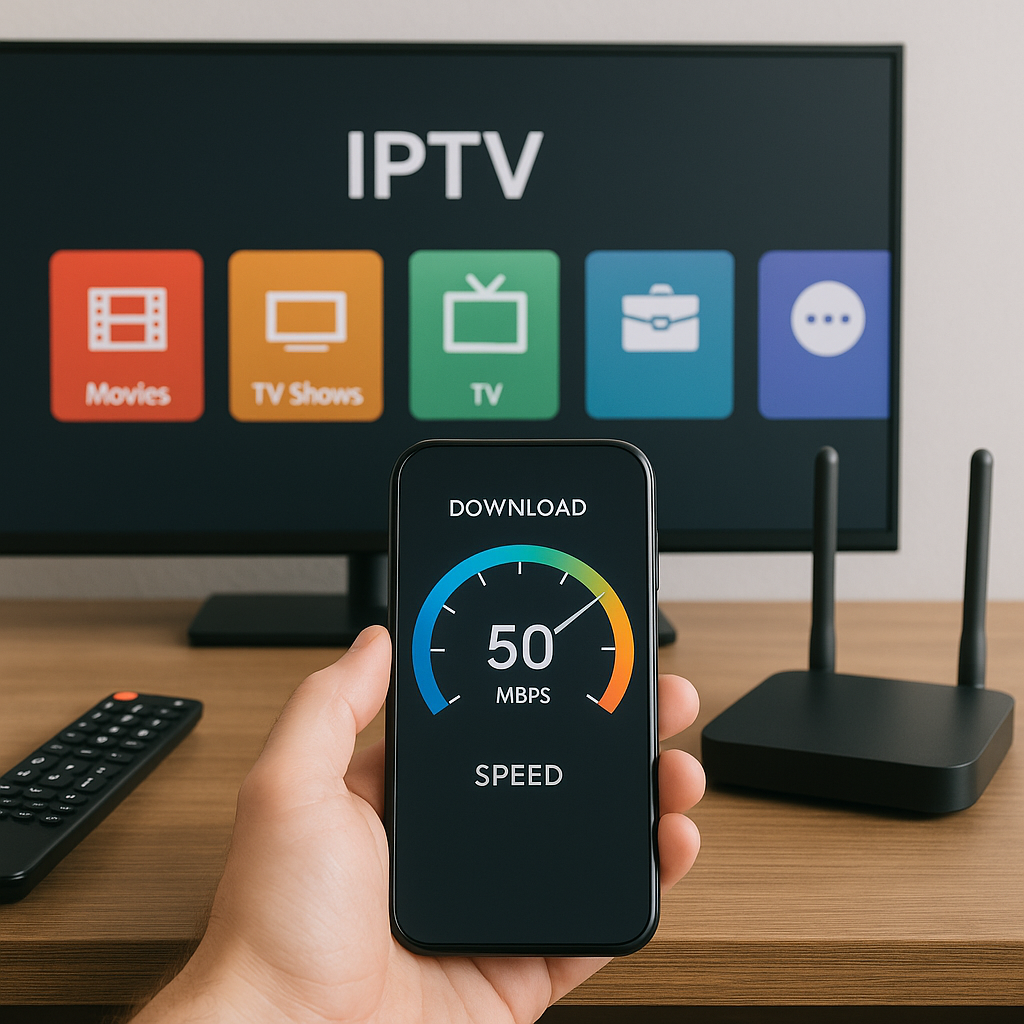
Stand near your IPTV device and run a speed test on your phone, then compare it with a speed test closer to the router. If the speed drops sharply near the TV, Wi-Fi coverage is likely the issue.
Also watch for these clues:
- IPTV works better during the day than evening
- HD works but 4K buffers
- Sports channels freeze during big games
- Other rooms stream better than the TV room
- The issue improves after restarting the router
These signs do not always point to one single cause, but they are helpful. They tell you whether to focus on placement, router strength, congestion, or device performance.
Place Your Router Where IPTV Can Actually Reach It
Router placement is one of the easiest ways to improve Wi-Fi for IPTV streaming. A router hidden in a cabinet, tucked behind a TV, placed on the floor, or buried in a basement utility room has to work much harder to reach your streaming devices.
Wi-Fi signals travel best when the router is open, central, and elevated. The fewer obstacles between the router and your IPTV device, the better.
Try to place your router:
- Near the centre of your home
- On a shelf or table, not the floor
- Away from thick walls and metal objects
- Outside closed cabinets
- Away from microwaves and cordless phones
- Closer to the main TV area if IPTV is your priority
In many Canadian homes, the modem is installed wherever the cable or fibre line enters the house. That might be the basement, a garage wall, or a corner room. It is convenient for installation, but not always ideal for Wi-Fi. If your IPTV device is two floors away, buffering is not surprising.
If you cannot move the main modem easily, consider adding a mesh Wi-Fi system, a wired access point, or a better router placed in a more central location. The goal is simple: make the Wi-Fi path between router and IPTV device shorter and cleaner.
Watch Out for Canadian Home Layout Challenges
Homes across Canada vary a lot. A downtown Toronto condo has different Wi-Fi problems than a detached home in Calgary, a townhouse in Surrey, or a duplex in Montreal. The good news is that the same principles still apply.
Common layout issues include:
- Concrete condo walls blocking signal
- Basement routers struggling to reach upstairs TVs
- Long narrow homes with weak coverage at the ends
- Older homes with dense materials in walls
- Neighbouring Wi-Fi networks causing interference
- Smart home devices crowding the network
If you live in a condo, interference from neighbours can be a major factor. If you live in a larger home, distance and walls may matter more. Either way, the fix starts with understanding where the signal weakens.
2.4 GHz vs 5 GHz vs 6 GHz for IPTV: Which Is Better?
Modern routers often broadcast more than one Wi-Fi band. You may see network names that include 2.4G, 5G, or sometimes 6G. These are not mobile data networks; they are Wi-Fi frequency bands. Choosing the right one can improve IPTV performance.
Here is the simple version:
- 2.4 GHz travels farther but is slower and more crowded
- 5 GHz is faster and usually better for IPTV near the router
- 6 GHz can be excellent but needs newer Wi-Fi 6E or Wi-Fi 7 devices
- Ethernet is still the most stable option when available
For IPTV, 5 GHz is often the sweet spot if your device is in the same room or one room away from the router. It usually delivers better speed and lower interference than 2.4 GHz. However, if your IPTV device is far away or behind several walls, 2.4 GHz may be more stable even if it is slower.
In most cases, stability matters more than the biggest speed number. A steady 50 Mbps connection can be better for IPTV than a connection that jumps from 200 Mbps to 5 Mbps every few seconds.
If your router uses one combined Wi-Fi name for all bands, it may automatically steer devices between them. That can work well with newer routers, but some IPTV devices behave better when connected manually to the most stable band.
Choose a Router That Can Handle IPTV in 2026
If your router is old, basic, or supplied years ago by your internet provider, it may struggle with modern streaming. IPTV, video calls, smart cameras, gaming consoles, phones, tablets, and laptops can all compete for the same Wi-Fi resources.
A better router will not magically fix a poor internet plan, but it can make a big difference when your home has coverage gaps or many connected devices. For a deeper buying guide, see Primestelly’s recommendations for the best routers for IPTV streaming in Canada.
When comparing routers, look for features that actually help real homes:
- Wi-Fi 6 or newer support
- Strong coverage for your home size
- Good performance with many devices
- Quality of Service, often called QoS
- Easy app-based controls
- Mesh compatibility if needed
You do not always need the most expensive model. A small apartment may do well with one solid Wi-Fi 6 router. A larger home may benefit more from a mesh system with two or three nodes. The right choice depends on your layout, number of viewers, and where your TVs are located.
Router Settings That Help Smooth IPTV Streaming
Once your router is in a good location, a few settings can help. Not every router uses the same menu names, but many offer similar options.
Useful settings to check include:
- QoS: Prioritize your IPTV device or streaming traffic
- Band steering: Let the router move devices to the best band
- Channel selection: Use automatic or choose a less crowded channel
- Firmware updates: Keep the router secure and stable
- Guest network: Keep visitors off your main streaming network
- Device list: Remove unknown or unused devices
QoS can be especially useful when someone is gaming, downloading large files, or uploading videos while another person is watching IPTV. It tells the router that streaming should stay smooth instead of being pushed aside by other traffic.
If you are nervous about changing settings, take a photo of the current screen before editing anything. That way you can put it back if needed.
Use Ethernet When Wi-Fi Is Not Enough
Even in a guide about Wi-Fi, it is important to be honest: Ethernet is usually the best connection for IPTV if you can use it. A wired connection from your router to your streaming device is more stable than Wi-Fi because it avoids walls, interference, and signal drops.
Ethernet is especially helpful for:
- Main living room TVs
- 4K IPTV streaming
- Big live sports events
- Homes with crowded Wi-Fi
- Basement or upstairs TV setups
- Devices close to the router
If your TV or box has an Ethernet port, try plugging it in directly and watching for a few hours. If the buffering disappears, you have confirmed that Wi-Fi was the weak link.
Some devices, such as certain Firestick models, may need an Ethernet adapter. Smart TVs, Android TV boxes, Apple TV units, and many other players often include Ethernet or support adapters. If you are deciding between streaming devices, Primestelly’s Firestick vs Android TV Box comparison for IPTV can help you choose a setup that fits your home.
If running a cable across the room is not practical, consider flat Ethernet cables that can tuck along baseboards, or ask an installer about adding a clean wall jack. For the main TV, a tidy wired connection can be worth it.
Wi-Fi Extender vs Mesh Wi-Fi for IPTV Streaming
When Wi-Fi does not reach the TV room, many people buy a basic extender. Sometimes it helps. Sometimes it creates a new problem. Understanding the difference between extenders and mesh Wi-Fi can save money and frustration.
A traditional Wi-Fi extender repeats the signal from your router. It can improve coverage in a weak area, but it may reduce speed and add delay if placed poorly. It also may create a second network name, which can be confusing.
A mesh Wi-Fi system uses multiple coordinated nodes that work together as one network. In many homes, mesh feels smoother because devices move between nodes more naturally.
Here is a practical comparison:
- Wi-Fi extender: Lower cost, simple, best for one small dead zone
- Mesh Wi-Fi: Better whole-home coverage, best for larger homes
- Powerline adapter: Uses electrical wiring, results vary by home
- Wired access point: Excellent performance, may need installation
- Ethernet cable: Most stable, best for main IPTV device
For IPTV, mesh is usually better than a cheap extender if you have multiple rooms with weak signal. Place the mesh node halfway between the router and the TV, not right beside the TV in a dead zone. The node needs a strong signal from the main router in order to pass along a strong signal.
If your mesh system supports wired backhaul, even better. That means the mesh nodes communicate through Ethernet instead of Wi-Fi, improving stability for streaming.
Step-by-Step: Improve Wi-Fi for IPTV Streaming at Home
If you want a clear action plan, follow this step-by-step process. It starts with the easiest fixes and moves toward upgrades only if needed.
- Restart your modem and router. Unplug both for about 30 seconds, plug the modem back first, wait, then plug the router back in.
- Test IPTV near the router. Move your streaming device or test with another device close to the router to see if performance improves.
- Run a speed test near the TV. Compare it with a test near the router. A large drop means Wi-Fi coverage needs attention.
- Move the router higher and more central. Avoid cabinets, floors, metal shelves, and corners where possible.
- Try the 5 GHz Wi-Fi band. If the device is close enough, 5 GHz often works better for IPTV than 2.4 GHz.
- Reduce network load. Pause large downloads, cloud backups, and heavy gaming during important live events.
- Update your router firmware. Use the router app or admin page to install stability and security updates.
- Prioritize your IPTV device. If your router has QoS, give your TV device higher priority.
- Try Ethernet for the main TV. Even as a test, it can confirm whether Wi-Fi is the issue.
- Upgrade only if needed. Consider mesh Wi-Fi or a newer router if the signal remains weak.
Take your time with these steps. Change one thing at a time and test again. That makes it easier to know what actually helped.
If you are setting up IPTV from the beginning, you may also find this complete guide to setting up IPTV in Canada useful, especially if you want the app, device, and network pieces to work together smoothly.
Manage Multiple Devices Without Ruining IPTV Quality
Modern homes are busy. One person may be watching live TV, another streaming YouTube, someone else gaming online, and a laptop may be backing up photos to the cloud. All of this can affect IPTV, especially if your router is older or your internet plan is modest.
IPTV streaming needs consistent bandwidth. It does not enjoy sudden traffic spikes. Upload activity can also cause problems, even though most people only think about download speed. Cloud backups, video uploads, security cameras, and file sharing can fill the upload side of your connection and make streaming feel unstable.
To protect IPTV quality, try these habits:
- Schedule large downloads for later
- Pause cloud backups during live sports
- Limit guest Wi-Fi during big events
- Disconnect unused smart devices
- Restart devices that are behaving strangely
- Use QoS to prioritize the main TV
If several people in your home use IPTV at the same time, connection planning matters even more. Primestelly explains this in more detail in the guide to how many devices you can use with IPTV in Canada.
The main idea is simple: each stream needs room to breathe. One HD stream may be easy for your network, but three or four streams plus gaming and downloads can expose weak Wi-Fi very quickly.
Device and App Choices Can Affect Wi-Fi Performance
Your Wi-Fi network matters, but so does the device receiving the signal. A newer streaming box with a good Wi-Fi chip may perform better than an older smart TV app in the same room. Some smart TVs have weaker Wi-Fi hardware, limited memory, or slower app performance.
If IPTV works better on one device than another, the network may not be the only issue. Test the same service on a phone, tablet, Firestick, Android TV box, Apple TV, or smart TV if available. This helps identify whether the problem follows the room or follows the device.
Common device-related issues include:
- Older Wi-Fi standards
- Weak internal antennas
- Low storage space
- Outdated IPTV apps
- Too many background apps
- Limited support for newer video formats
Using a well-supported IPTV player can also make the experience easier. If you are comparing apps, Primestelly’s guide to the best IPTV apps for beginners in Canada is a helpful starting point. If you already use IPTV Smarters Pro, this walkthrough on how to use IPTV Smarters Pro in Canada can help you check setup details that may affect playback.
In most cases, a stable network plus a reliable device gives the best results. If either one is weak, IPTV can feel inconsistent.
Common Mistakes to Avoid When Improving Wi-Fi for IPTV
When viewers try to fix buffering, they often make the same mistakes. None of these are embarrassing; they are common because home networking is not always explained clearly. The good news is that avoiding them can save time and money.
Watch out for these common mistakes:
- Buying speed before checking Wi-Fi: A faster plan will not fix a weak signal in the TV room.
- Putting extenders in dead zones: An extender needs a decent signal to repeat.
- Hiding the router in a cabinet: This blocks and weakens the signal.
- Using old devices forever: Older streaming sticks and smart TVs can struggle with modern IPTV.
- Ignoring upload traffic: Cloud backups and cameras can affect streaming stability.
- Changing everything at once: You will not know which fix worked.
- Assuming Wi-Fi bars tell the full story: Signal strength and actual stability are not always the same.
Another mistake is blaming IPTV immediately without testing. Sometimes the issue is a channel source, but many times it is local Wi-Fi, router congestion, or a device problem. A calm test process makes the answer clearer.
Also avoid placing your router near a microwave, baby monitor, thick metal shelving, large aquarium, or electrical panel. These can all interfere with signal quality in different ways.
When a VPN Helps IPTV and When It May Slow Wi-Fi
Many IPTV users ask about VPNs. A VPN can help with privacy and may improve routing in certain situations, but it can also reduce speed if the server is far away or overloaded. It is not a magic buffering cure, and it should be used thoughtfully.
A VPN may help if:
- Your internet provider is routing traffic poorly
- You want more privacy while streaming
- You need a stable server path
- Your IPTV app works better on a certain route
A VPN may hurt performance if:
- The VPN server is too far away
- Your router is too weak to handle encryption
- You choose a crowded free VPN
- Your device has limited processing power
- Your base Wi-Fi is already unstable
If you use a VPN, test IPTV with it on and off. Choose a nearby Canadian or North American server where appropriate, and avoid free VPNs that are slow or unreliable. For practical options, see Primestelly’s guide to the best VPN for IPTV in Canada.
Remember: fix your Wi-Fi first. A VPN cannot repair a weak signal between your router and your TV.
How to Know If the Problem Is Wi-Fi, Internet Speed, or IPTV
When IPTV buffers, it can be hard to know what to blame. A simple testing pattern helps separate Wi-Fi problems from internet speed problems and app-related issues.
Start by comparing performance in different situations:
- Same device, different room
- Different device, same room
- Wi-Fi versus Ethernet
- VPN on versus VPN off
- One stream versus multiple streams
- Peak evening hours versus morning
If Ethernet fixes the problem, Wi-Fi is likely the issue. If every device struggles even on Ethernet, your internet plan, modem, provider congestion, or IPTV source may be involved. If only one app struggles, update or reinstall the app, clear cache where possible, or try a backup player.
If only 4K channels buffer while HD channels work well, your connection may be almost good enough but not stable enough for high-bitrate streams. This is where router placement, 5 GHz Wi-Fi, Ethernet, or mesh can make a noticeable difference.
If problems happen mostly during major live sports events, your home network may be competing with more local usage, or the stream itself may be under heavier demand. Still, a stronger Wi-Fi setup gives you the best chance of smooth viewing.
Best Practical Wi-Fi Setup for Smooth IPTV in Canada
There is no single perfect setup for every home, but there are dependable patterns. Below are practical recommendations based on common Canadian living situations.
For a small apartment or condo:
- Use a modern Wi-Fi 6 router
- Place it in the open, near the centre
- Use 5 GHz for the IPTV device
- Try Ethernet if the TV is nearby
- Choose less crowded Wi-Fi channels if needed
For a townhouse or medium home:
- Use a strong router or two-node mesh system
- Place the main router centrally
- Put mesh nodes halfway to weak areas
- Prioritize the main IPTV device with QoS
- Wire the main TV if possible
For a larger detached home:
- Consider a three-node mesh system
- Use wired backhaul if possible
- Avoid relying on one basement router
- Test signal in every TV room
- Use Ethernet for 4K main-room viewing
For families with many devices:
- Choose a router built for multiple users
- Create a guest network
- Schedule downloads outside viewing times
- Use device priority for IPTV
- Review connected devices monthly
The best setup is the one that keeps your main viewing device stable. You do not need perfection everywhere if your living room TV gets the steady connection it needs.
FAQ
What is the best Wi-Fi band for IPTV streaming?
In most cases, 5 GHz is best for IPTV streaming when your device is close enough to the router because it is faster and usually less crowded than 2.4 GHz. If your TV is far away or behind several walls, 2.4 GHz may be more stable. Newer 6 GHz Wi-Fi can be excellent, but only if both your router and streaming device support it.
How fast should my Wi-Fi be for IPTV?
For smooth IPTV, aim for a stable connection rather than only a high speed test number. As a general guide, HD streams often work well with 15 to 25 Mbps per stream, while 4K may need 50 Mbps or more depending on the stream. If multiple people watch at once, add more room. Stability, low interference, and good router placement matter just as much as speed.
Will a new router stop IPTV buffering?
A new router can help if your current router is old, weak, overloaded, or poorly suited to your home size. However, it will not fix every issue. Before upgrading, test your IPTV device near the router, try Ethernet if possible, restart your equipment, and check whether other devices are using heavy bandwidth. If Wi-Fi coverage is clearly weak, a better router or mesh system can make a big difference.
Is Ethernet better than Wi-Fi for IPTV?
Yes. Ethernet is usually better than Wi-Fi for IPTV because it is more stable and less affected by walls, distance, interference, and neighbouring networks. If your main TV supports Ethernet, it is worth testing. Many viewers use Ethernet for the main living room TV and Wi-Fi for phones, tablets, and secondary screens.
Why does IPTV buffer at night but not during the day?
Nighttime buffering can happen because more people in your home and neighbourhood are online. Your own network may be busier with streaming, gaming, downloads, and smart devices. Internet provider congestion can also be more noticeable in the evening. Improving Wi-Fi, using Ethernet, reducing background traffic, and prioritizing your IPTV device can all help.
Final Thoughts
Learning how to improve Wi-Fi for IPTV streaming is one of the most useful things you can do for a smoother viewing experience in Canada. Start with simple fixes: move the router, test the signal near your TV, use the right Wi-Fi band, reduce background traffic, and try Ethernet where possible. If your home needs more coverage, a modern router or mesh Wi-Fi system can be a smart upgrade. The good news is that most IPTV Wi-Fi problems are fixable with a calm, step-by-step approach. And when you want a premium IPTV experience backed by friendly guidance, Primestelly is here to help you stream more confidently, comfortably, and smoothly.